What Is VirtualBox? How Is It Installed? (With Screenshots)
Virtualbox is a free and open-source virtualization program. It can run on all cross-platform-supported operating systems such as Windows, Linux, and OS…

Virtualbox is a free and open-source virtualization program. It can run on all cross-platform-supported operating systems, such as Windows, Linux, and OS X. In this article, I’ll show you how to install the VirtualBox program and walk through the installation process.
Installing VirtualBox
To be able to install it, let’s download the program suited to our operating system from the VirtualBox website.
When we click the link, we’ll land on the VirtualBox Download page.
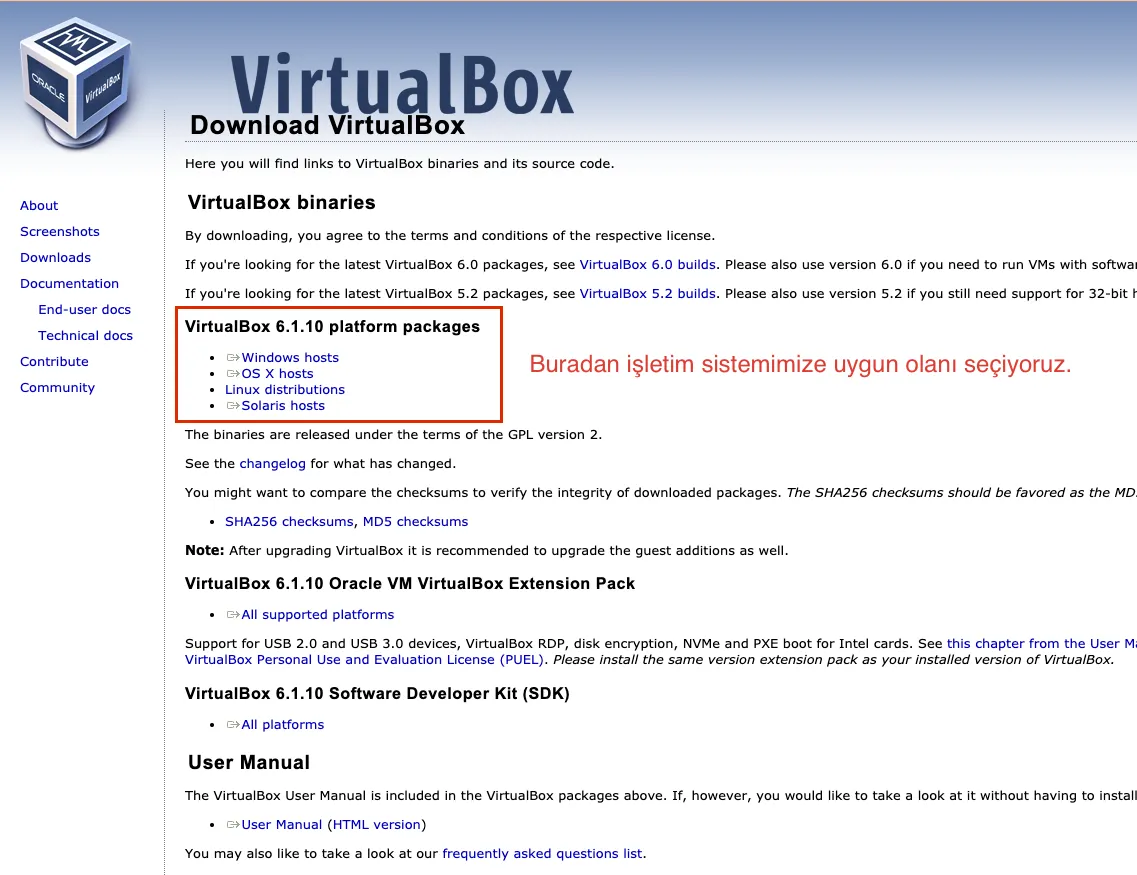
Since I’m using Windows 10 here, I’ll click the Windows Hosts link. I went with Windows since the installation process is roughly the same across all systems. The file I’ll be downloading is around 168 MB.
In addition to the program we downloaded, we’ll also download the guest additions, found a bit further down the page.

This add-on lets us;
- Make remote desktop connections to virtual machines,
- Connect USB devices directly to the virtual machine,
- Transfer files from our host machine via drag and drop,
- Use the virtual machine in full-screen mode, and provides many other features like these.
Now we can move on to installing the VirtualBox program we downloaded by running it.
After double-clicking the VirtualBox file we downloaded;
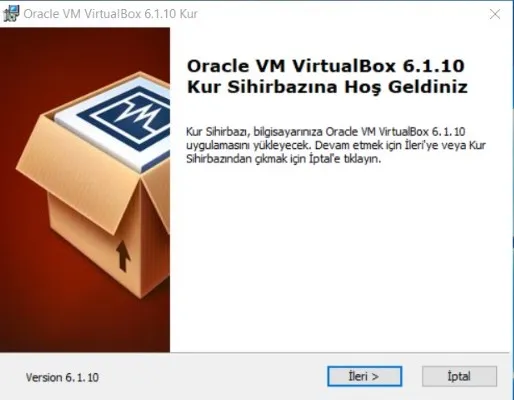
We move forward by clicking Next on the screen that opens.
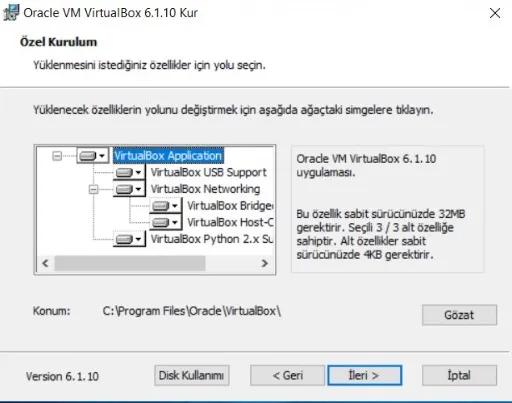
On the screen that opens, we select the options as we like and click Next.
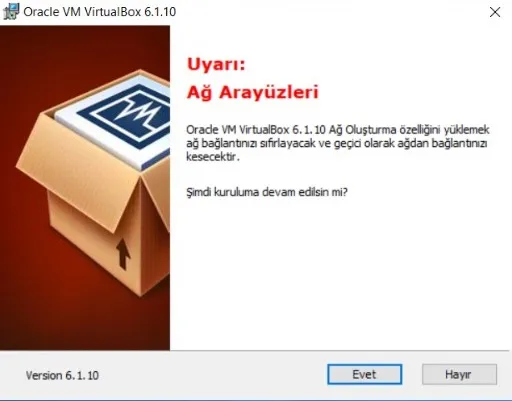
The screen that opens tells us that our network connection will be temporarily interrupted. We click Yes and continue.
We start installing the program by clicking the Install button.
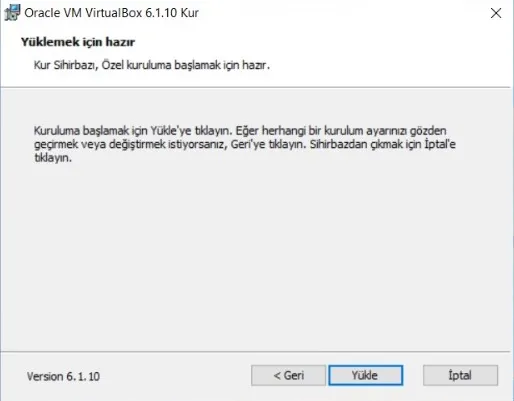
Once the installation is complete, we click Finish to wrap it up.
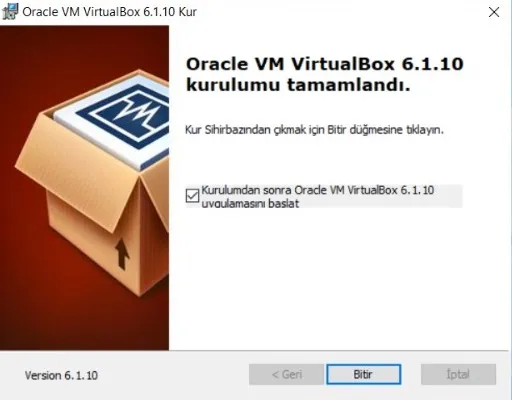
Our program has been installed successfully, and the VirtualBox screen has appeared.
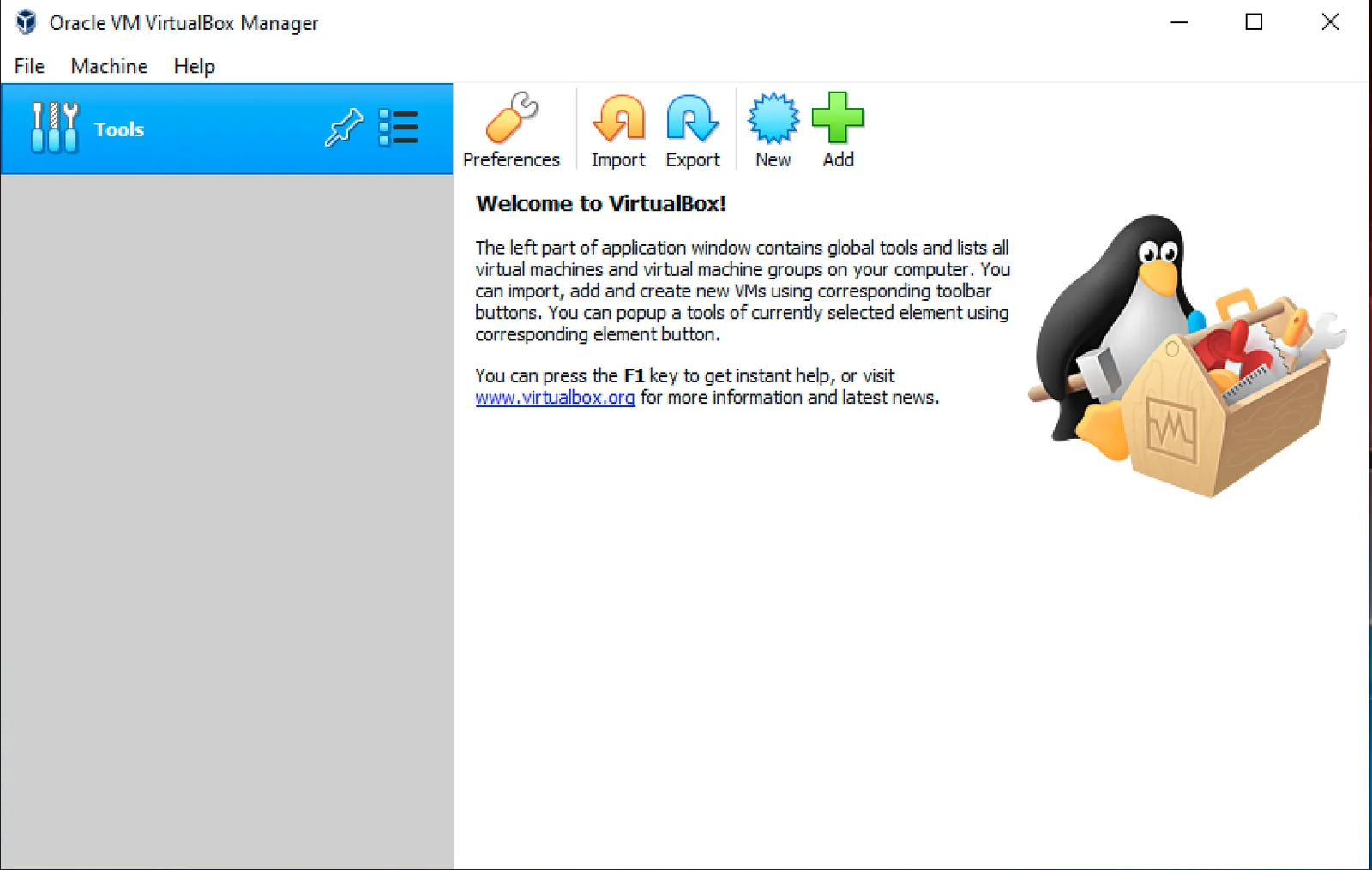
Now let’s install the guest additions.
Let’s open the add-on we downloaded by double-clicking it.
On the screen that appears, we click Install.
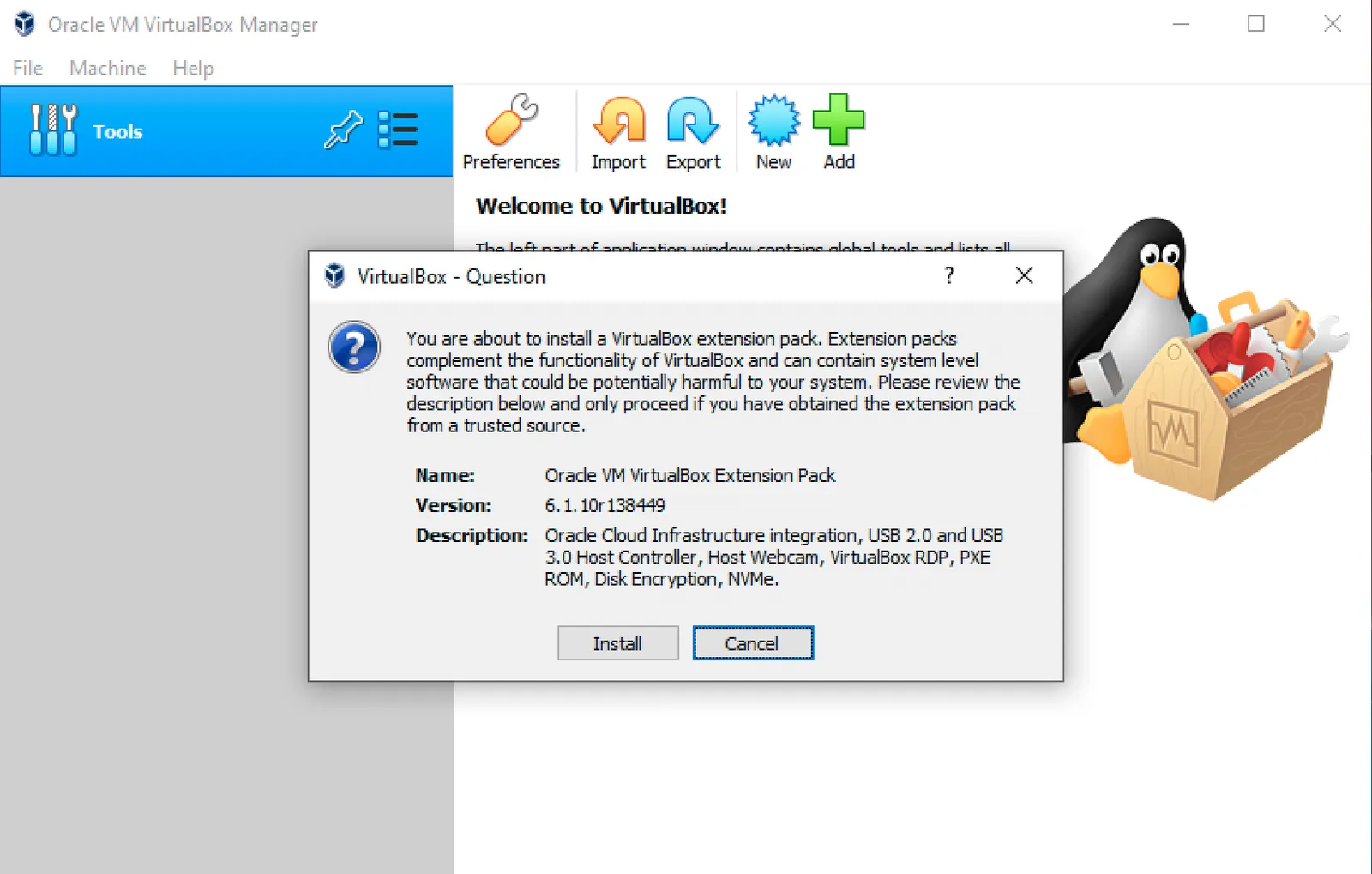
We continue by checking the I Agree option.
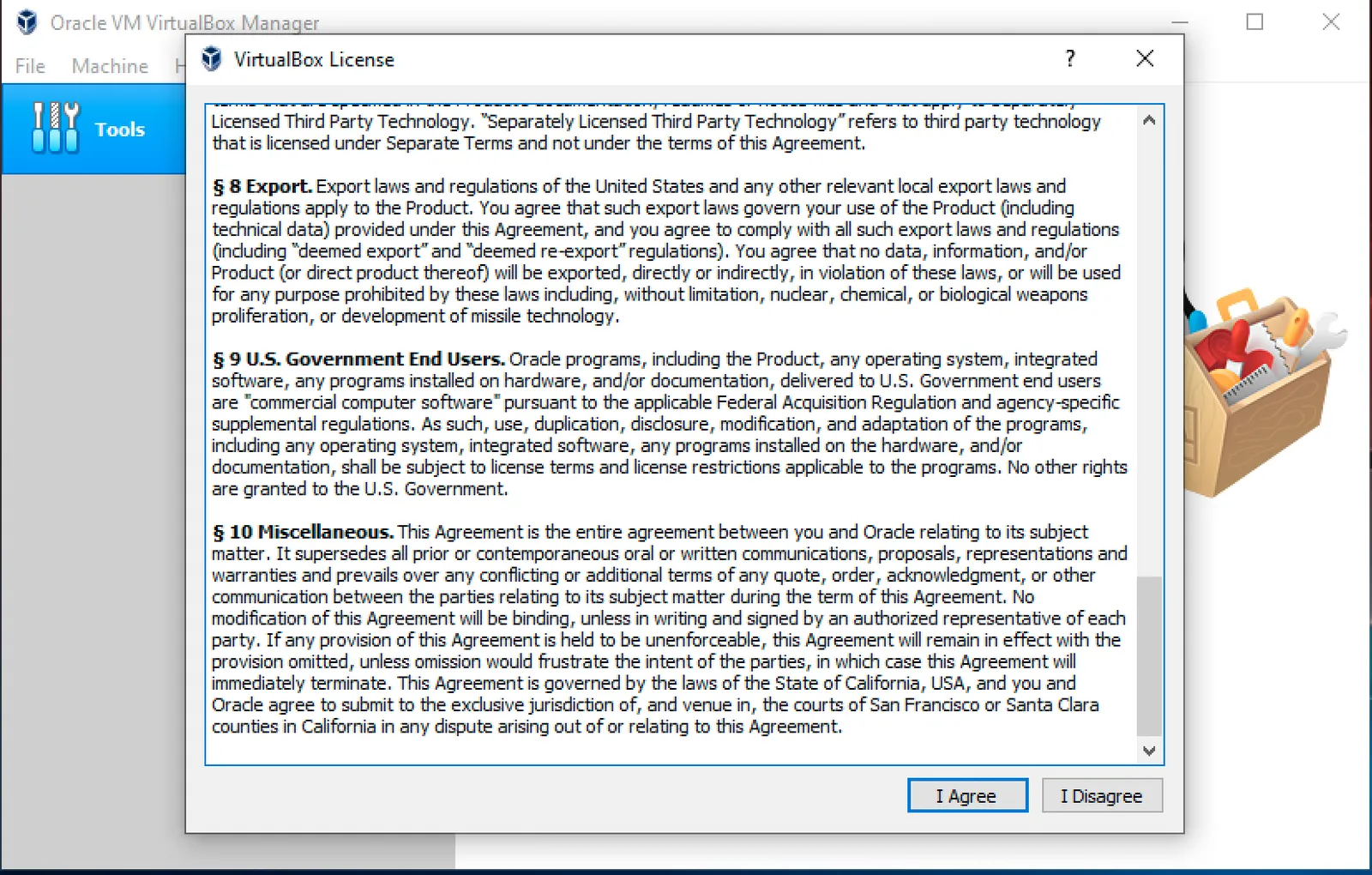
And our add-on has been installed successfully as well.
From now on, we can download whichever operating system we want onto our computer and run it in our virtual machine using VirtualBox.
Once we’ve made the necessary configurations to be able to install operating systems in our virtual machine, we can go ahead with the installation. In our next article, we’ll show How to Install an Operating System in VirtualBox? Stay tuned :)