Windows Server-Sistem Yöneticiliği
Creating Groups in Active Directory and Group Membership Concepts
In this article, I will talk about how to create a group or groups in Active Directory and cover group membership concepts. I will also…

Mehmet Kadir CIRIK
Hello everyone. :)
In this article, I will talk about how to create a group or groups in Active Directory and cover group membership concepts.
I will also create a group inside the Organizational Unit I set up earlier, and add users to that group. The reason we create these groups is so that, whenever we need to grant a permission or apply a restriction to users, we can make the assignment through groups instead of handling each user individually.
- As you can see, we don’t have any group yet. Let’s create a group inside this folder now.
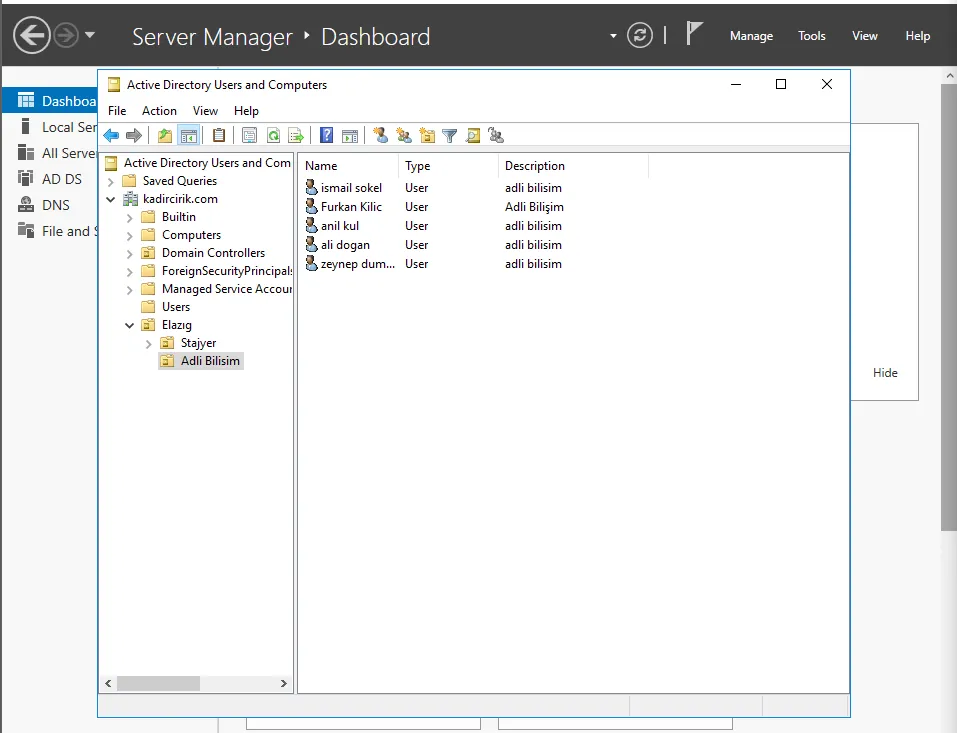
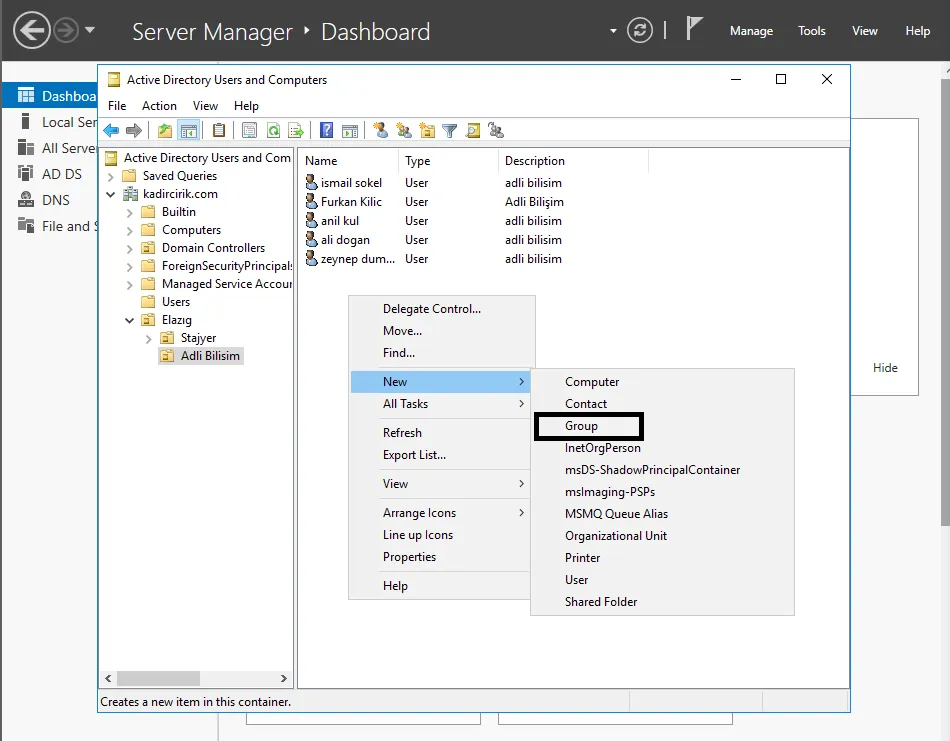
- We go into our folder and click right-click>new>group.
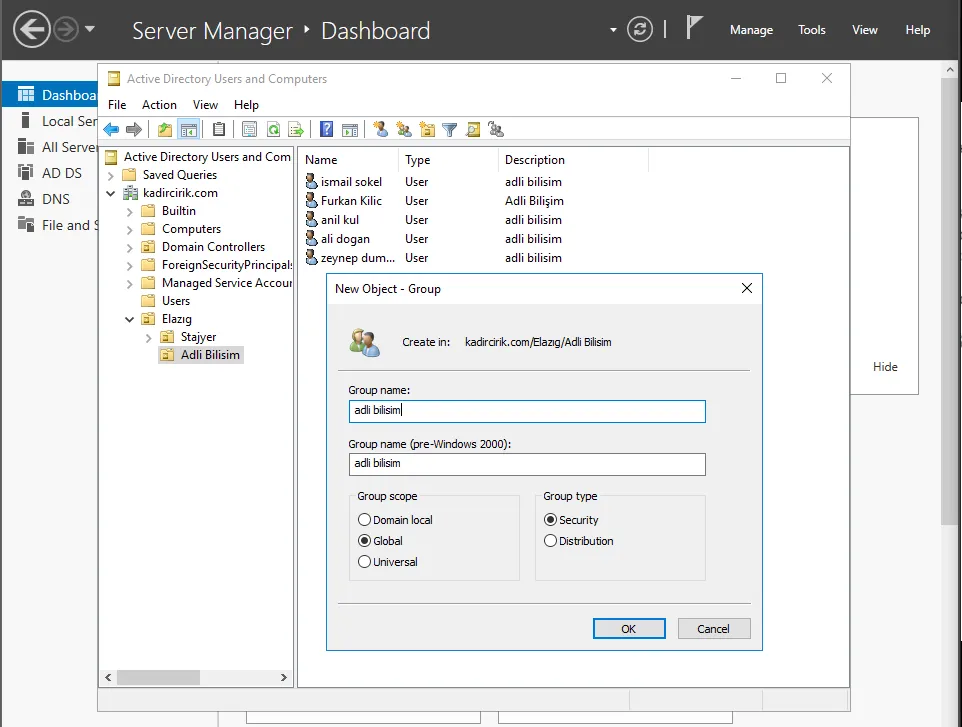
- Here I’m writing the name because I want to create a digital forensics group again. Below that, we’re presented with different options under 2 headings. These are:
1– Group Scope:
- Domain local: This group can only access resources within the domain we created.
- Global: This is a group that lets us organize users.
- Universal: This group provides access to all domain resources across the entire forest structure it belongs to.
2– Group Type:
- Security: We use these groups for assigning user rights and permissions.
- Distribution: We use these groups to create email distribution lists.
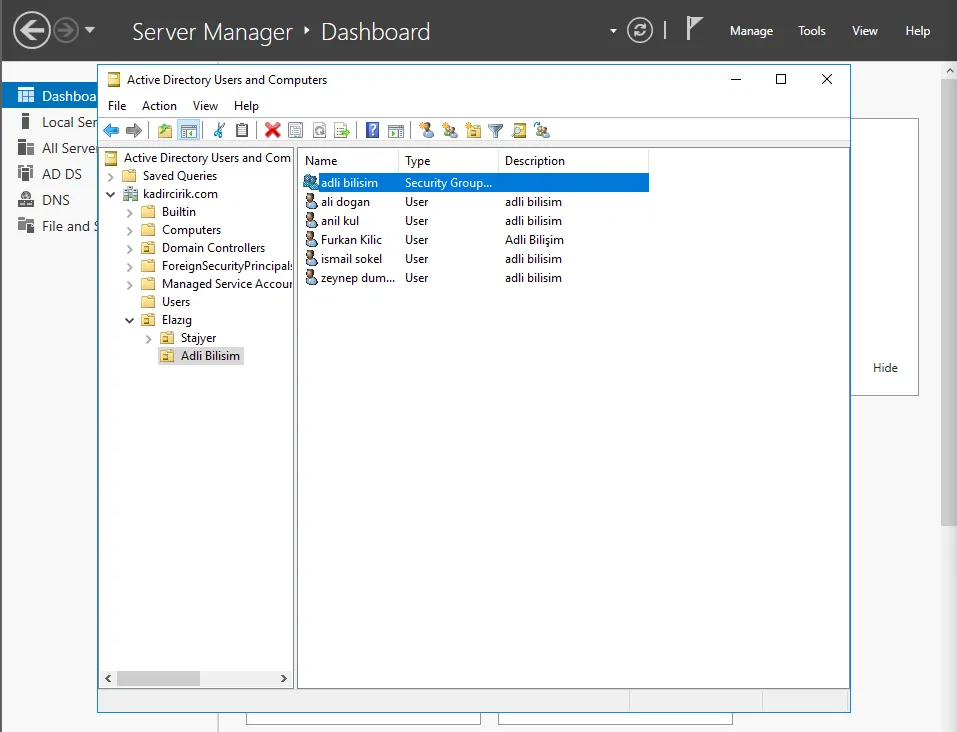
- Here you can see that our group has been created.
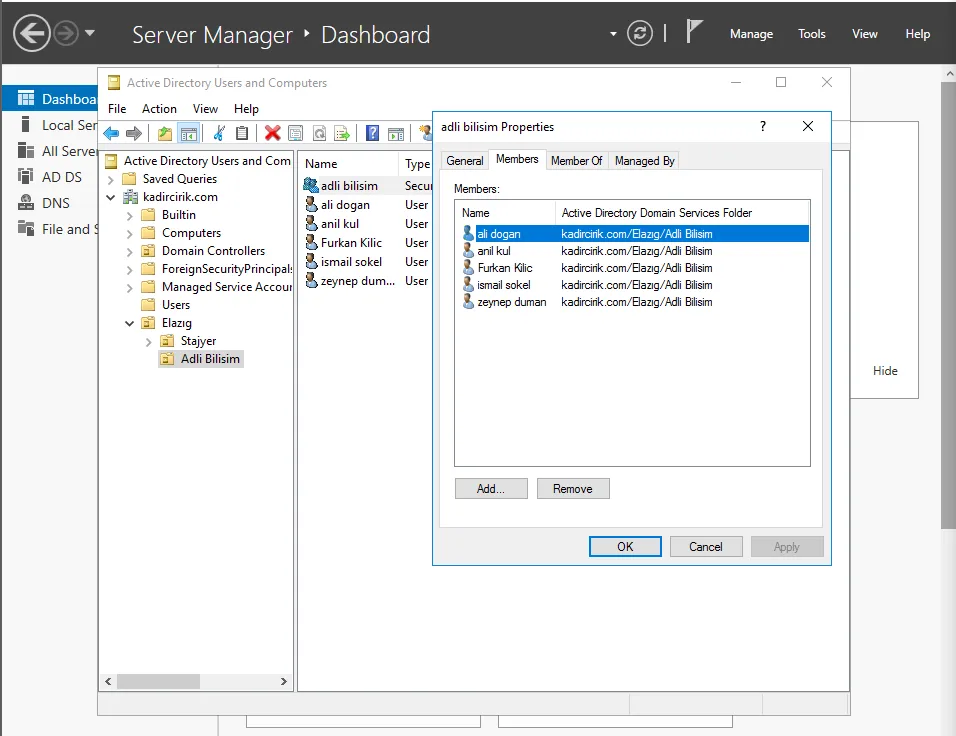
- When we double-click the group we created, members appear. However, we don’t have any members yet.
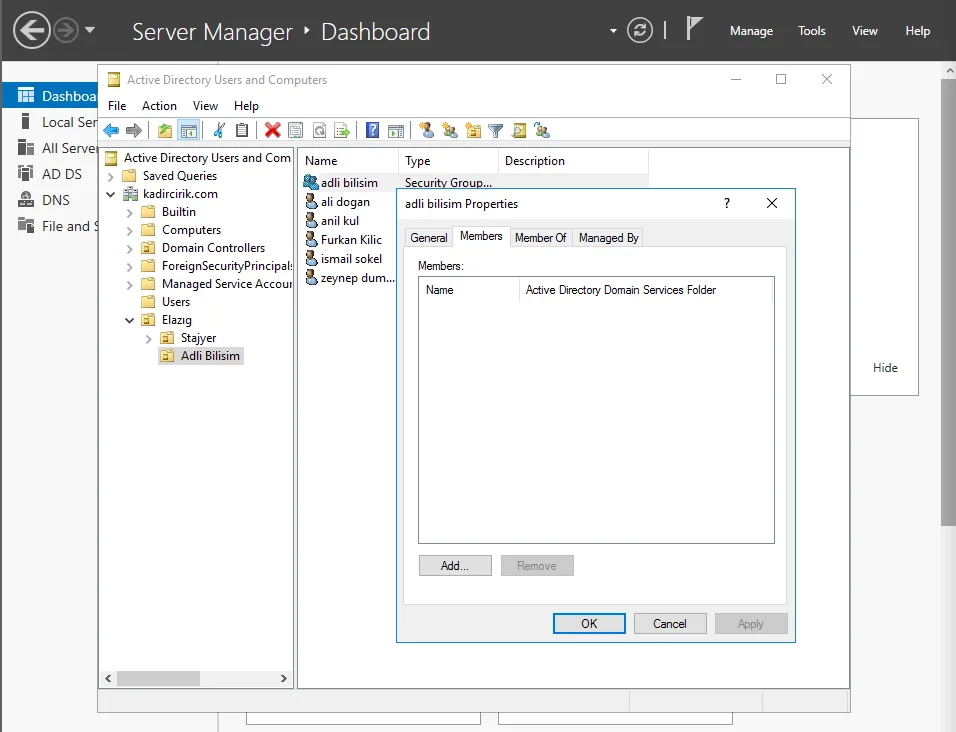
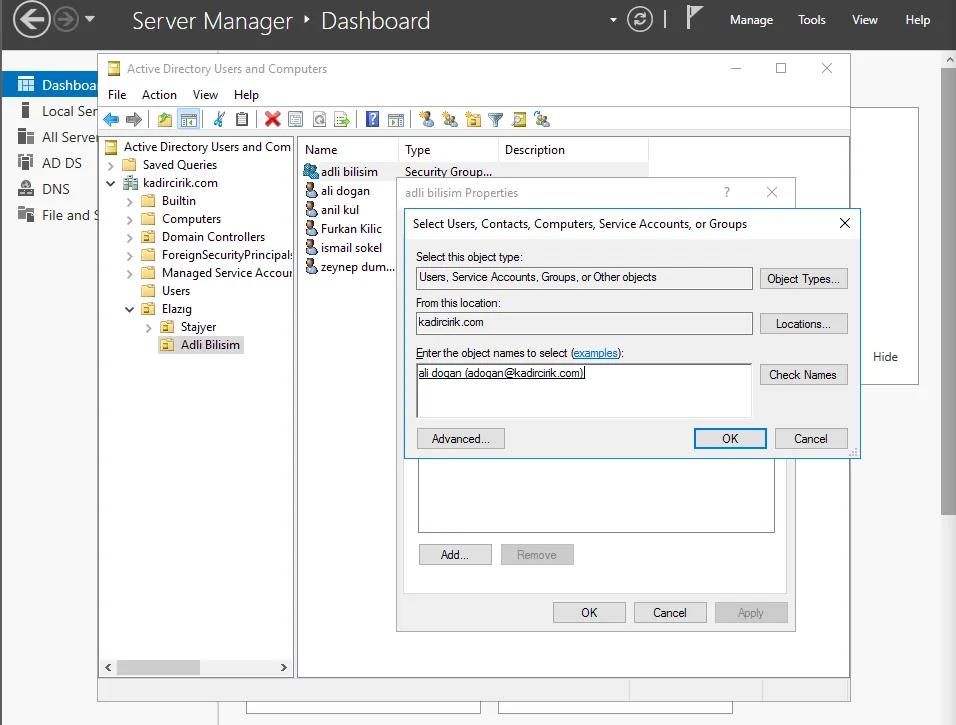
- To add a member here, we click the “add” button, then type the name of the user we want to add and click the “Check Names” button, and it will automatically find the user we want to add.
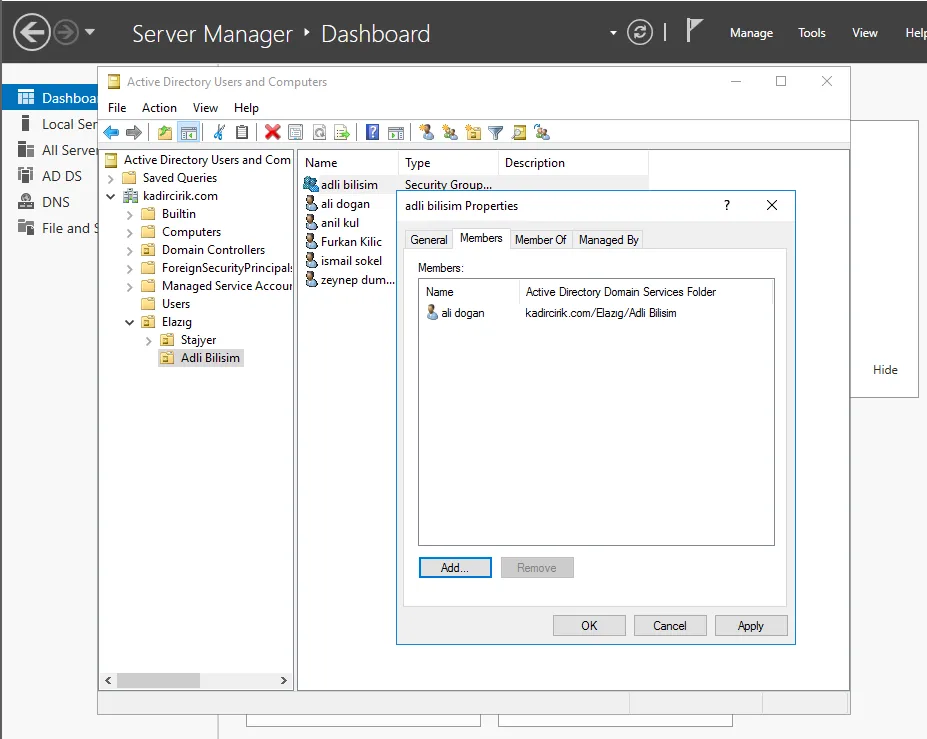
- Afterwards, you can see that this user has been added to our group.
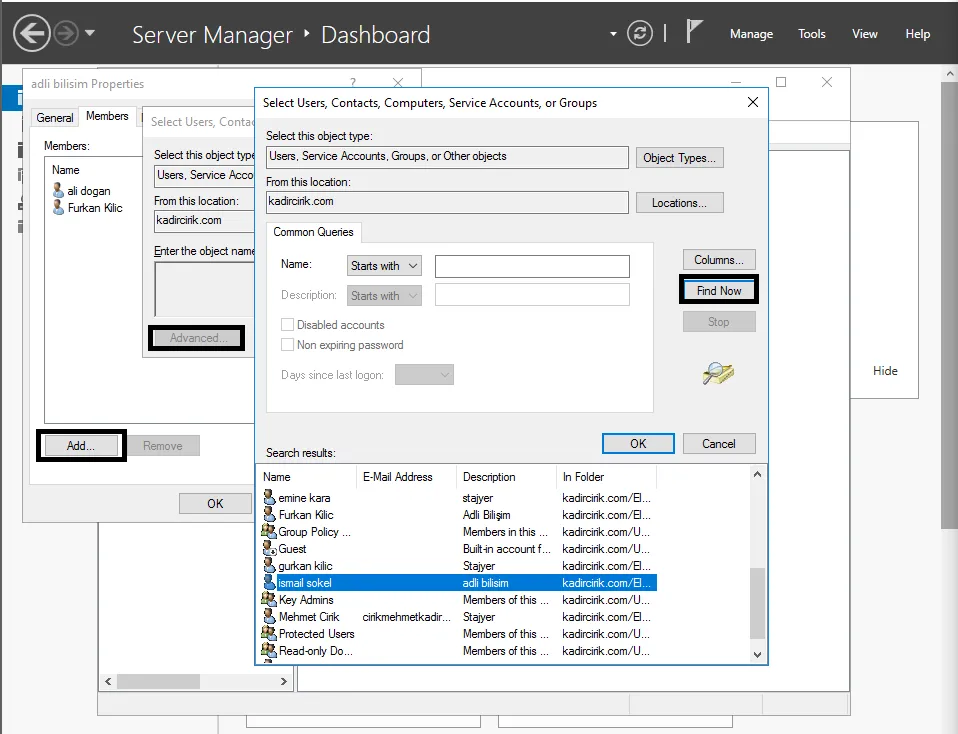
- If you want to do a bulk addition, you can add users in bulk through the “add>advanced>find now” tabs. You can also specify the path you want from the location section.
- All the users we’ve added can be seen here.
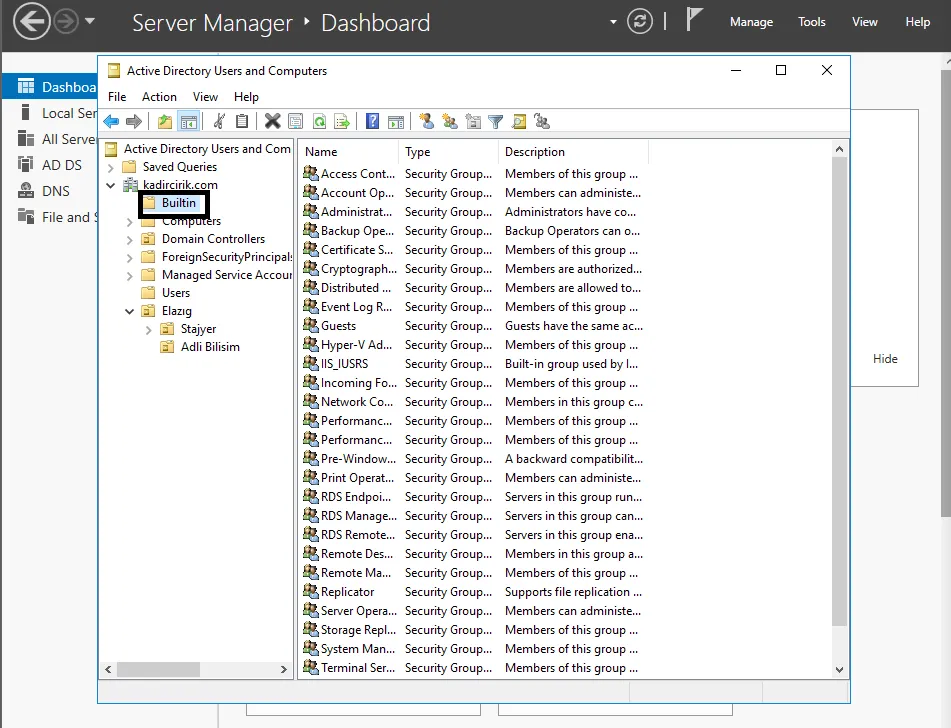
- Additionally, when we install Active Directory, we get a number of built-in groups that come by default. You can find these groups inside the “Builtin” folder. These groups already have specific tasks assigned to them. When we make our domain users members of these groups, they will take on various responsibilities. You can get information about these tasks from the description field.
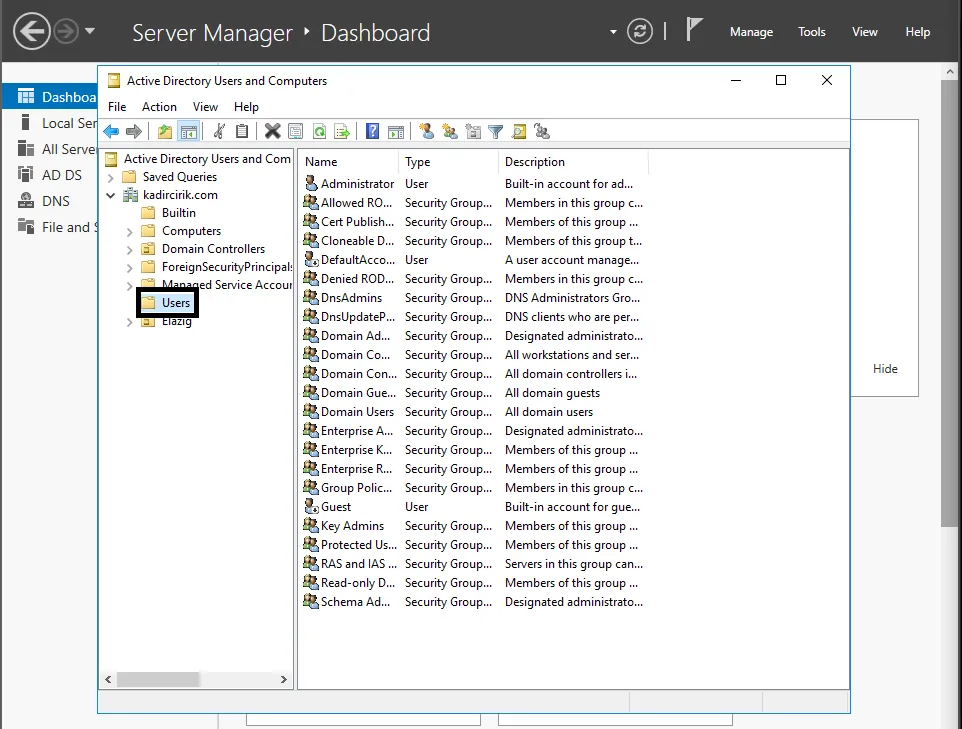
- Also, secondly, the built-in groups that come with Active Directory can also be found under the “Users” folder.
Thank you for reading this far. :)