Joining a Windows 10 Machine to a Domain and IP Configuration
In this article, I'll show you how a Windows 10 machine I set up in a virtualized environment can be joined to a domain. Here, the computer I create and join to the…

Hello everyone. :)
In this article, I’ll show you how a Windows 10 machine I set up in a virtualized environment can be joined to a domain.
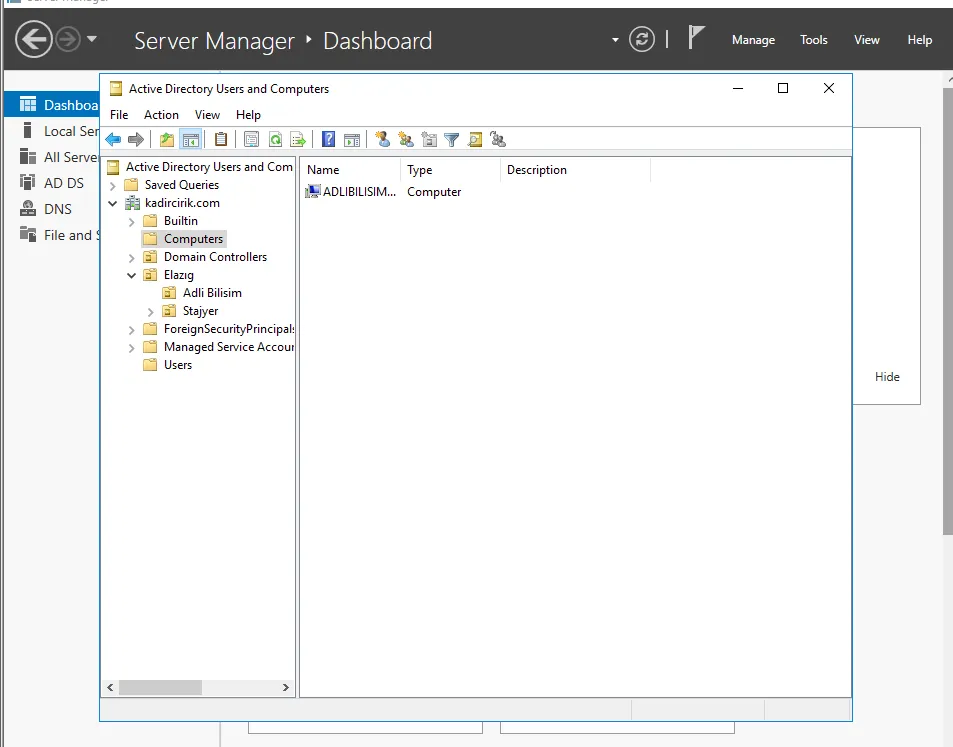
The computer I create here, which I’ll join to the domain, will appear under the “Computers” folder in Active Directory (AD).
If we want to join a PC to a domain, the first setting we need to configure is the IP configuration, so I’ll start with that. This configuration will ensure that our machine and the Domain Controller are on the same network, so they can communicate with each other.
- To do this configuration, on our Windows 10 machine we click “Settings > Network & Internet > Change adapter options”.
- We’ll then see the screen shown below. Here, we select “right-click > properties”.
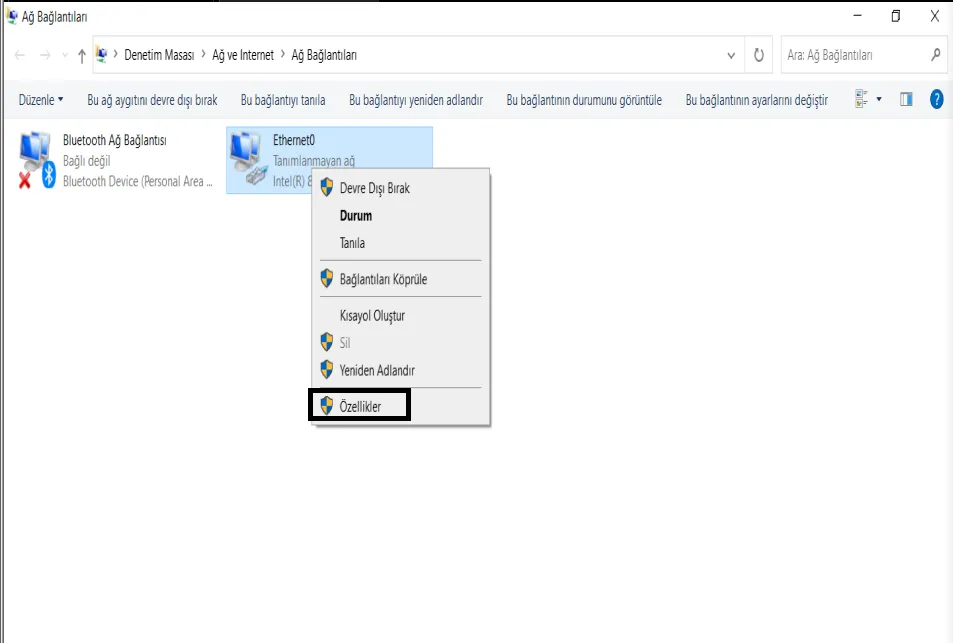
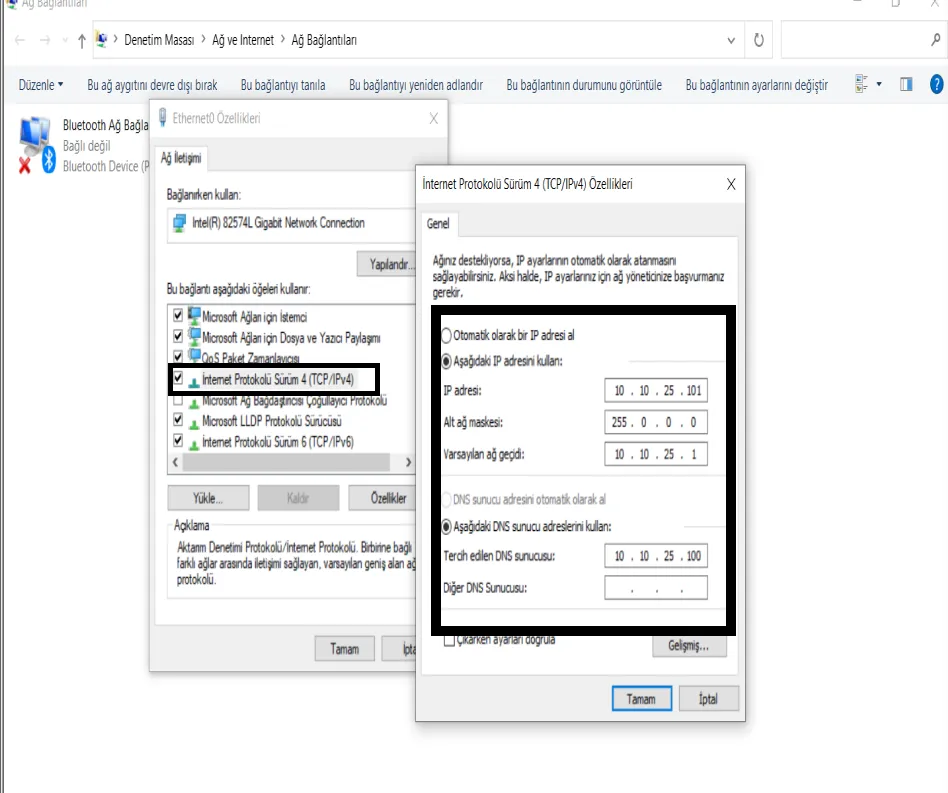
- We’ll now see the screen where we’ll configure the IP. In detail, here we have:
- IP address: The IP address we want to assign to our machine (configure it keeping in mind that it needs to be on the same network as our domain).
- Subnet mask: The subnet mask for the IP address we assigned to our machine.
- Default gateway: The IP address of our modem goes here. You don’t have to fill this in.
- Preferred DNS server: Here we enter the address of the DNS server running on the Domain Controller — that is, the Domain Controller’s IP address.
We then confirm the changes and exit. If you want to make sure both machines are on the same network, you can check by pinging one from the other.
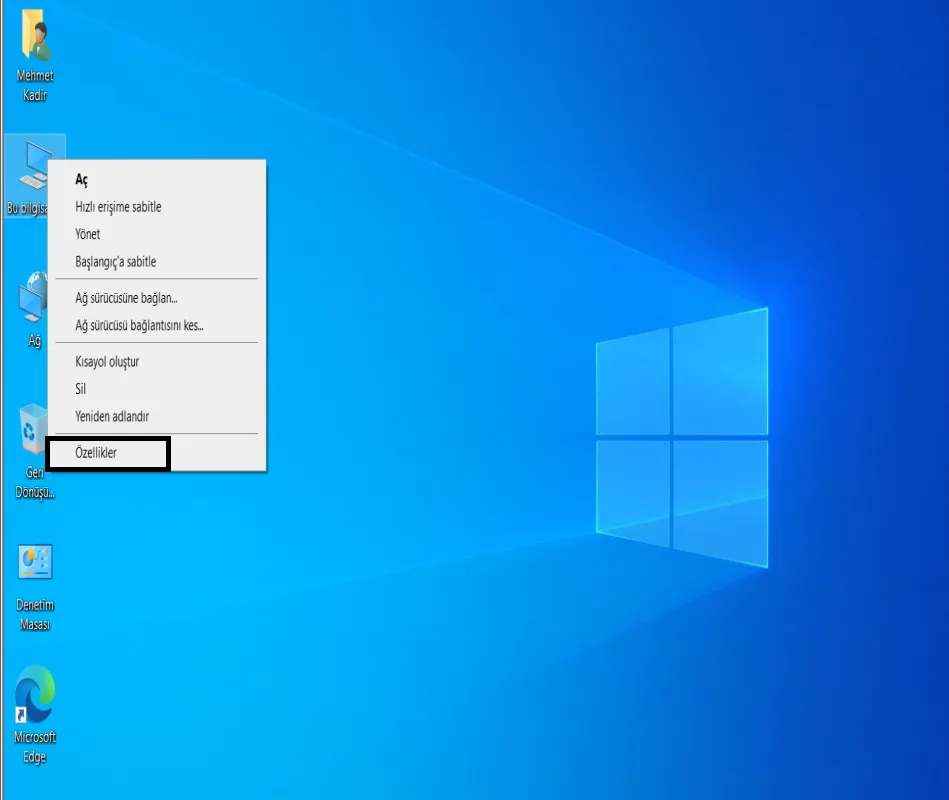
- Now let’s move on to how we’ll join this machine to the domain.
- We right-click this computer and select properties.
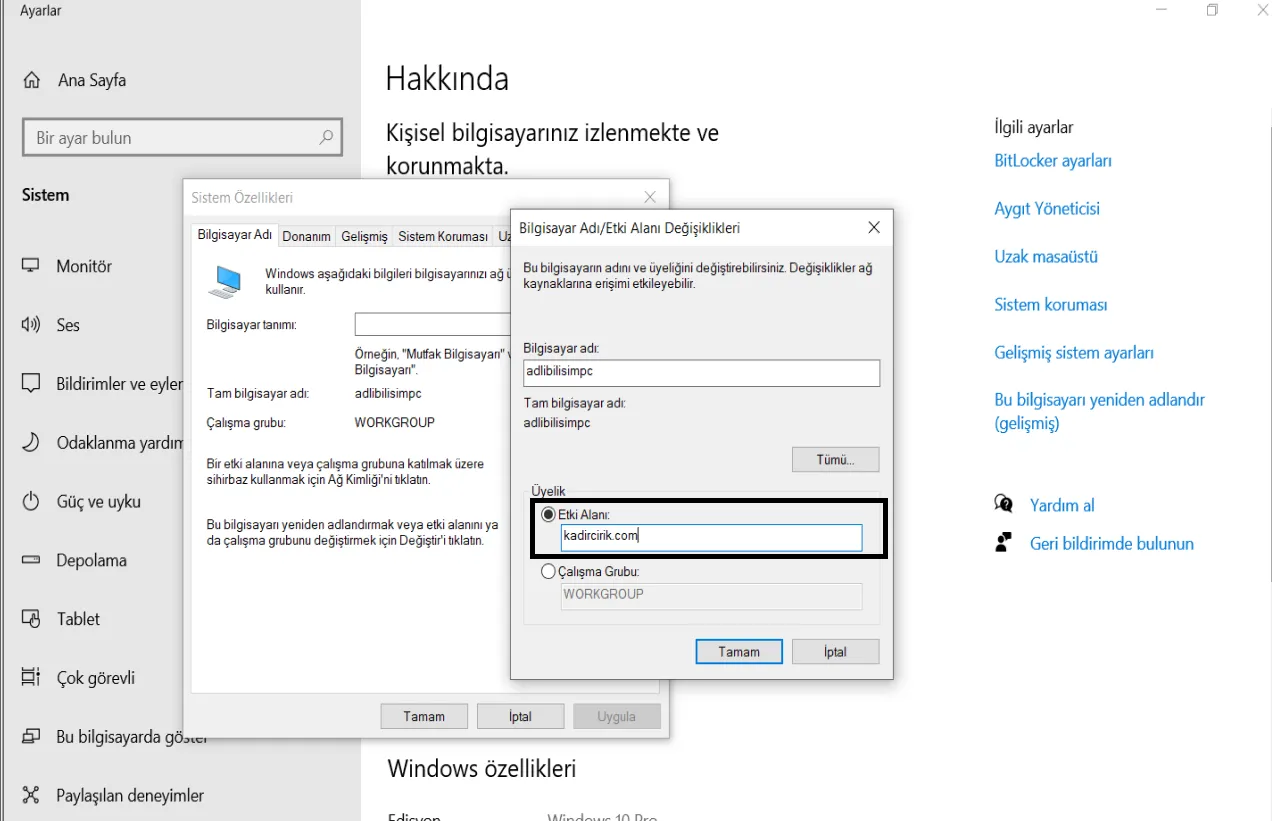
- From there, we go to “Advanced system settings > Change”, and first change our machine’s name. Then we restart the computer.
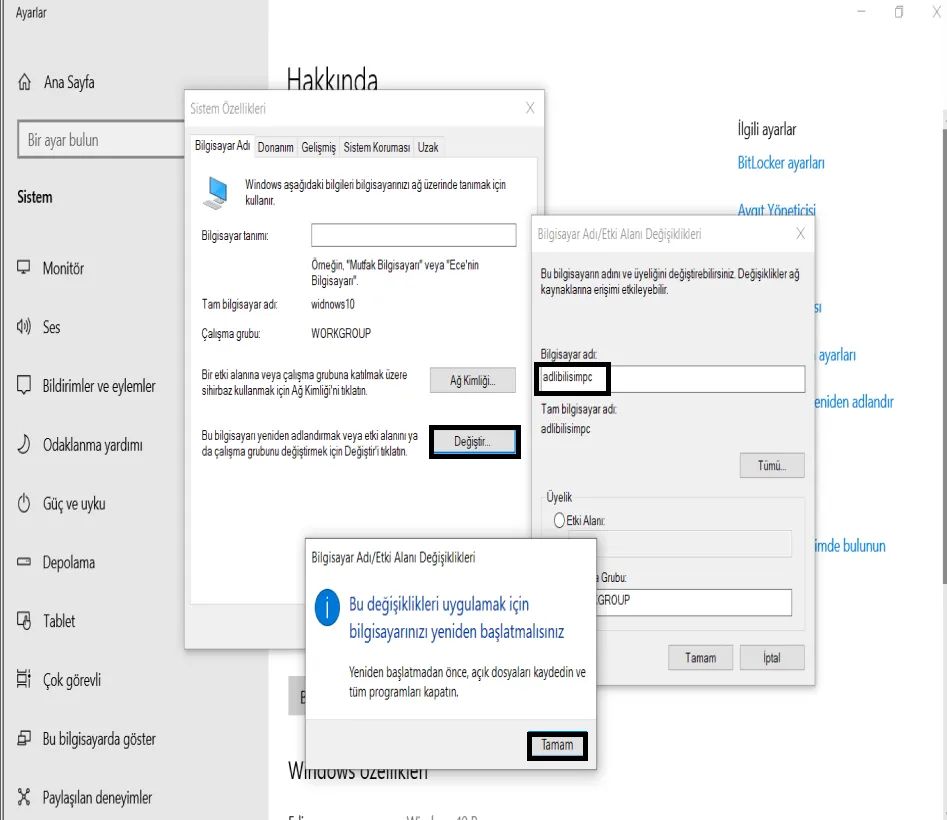
- After our computer boots back up, we follow the same path again to get to the same screen. Now, to join our machine to the domain, it asks us to enter a domain. Since my domain is “kadircirik.com”, I enter that.
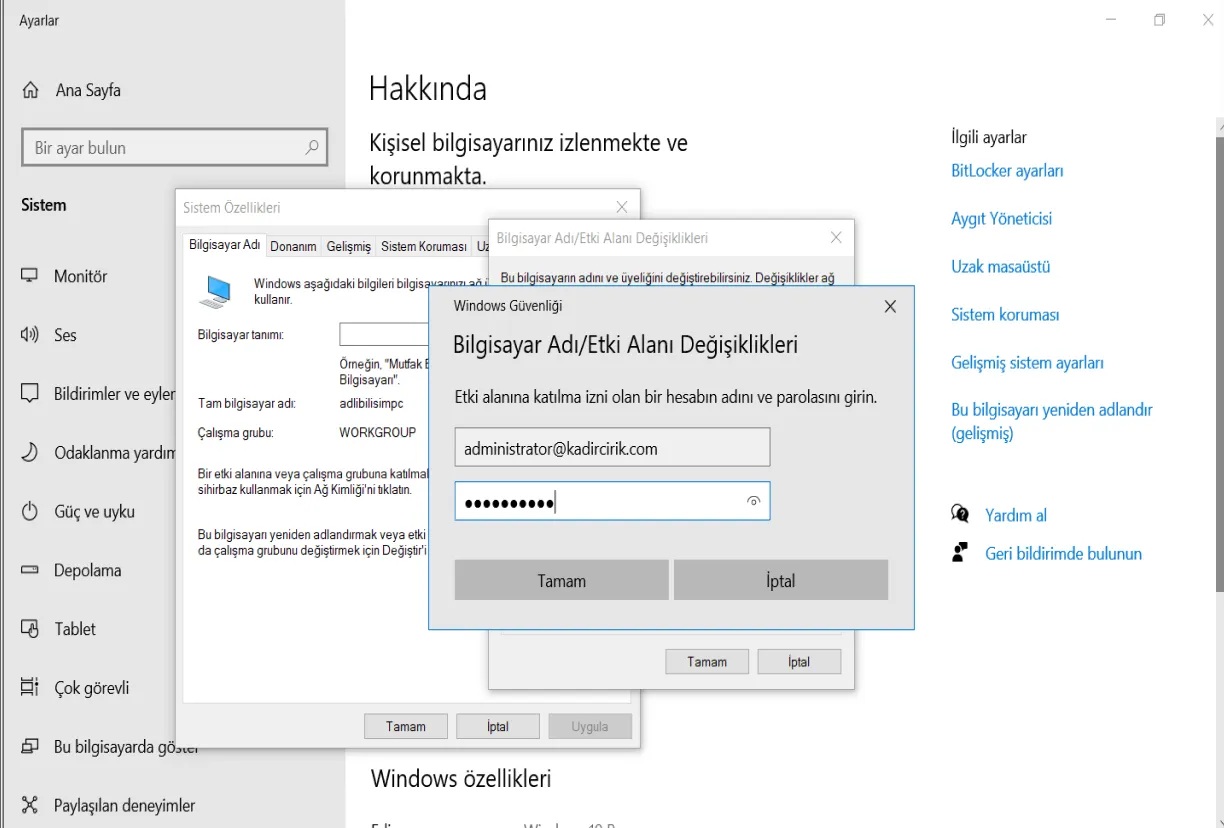
- It then asks us for a username and password. Here, you can log in with any of the users that exist in Active Directory. I’m logging in with the Administrator account.
- Afterward, when we go to our Server machine, we can see the computer we created under the “Computers” folder.
Thanks for reading this far. :)