Restricting Which Computers Users Can Log On To in Active Directory
Normally, a user under a domain can log on to any computer in that domain. In this article, I'll show you how to restrict certain Active Directory users to…

Hello everyone. :)
Normally, a user under a domain can log on to any computer in that domain. In this article, I’ll show you how to restrict certain Active Directory users from accessing computers that are also in Active Directory. In other words, we’ll define which computers a user is, and isn’t, allowed to log on to.
To do this, we need to go to the account of the user we want to restrict and assign the computer or computers they’re allowed to log on to.
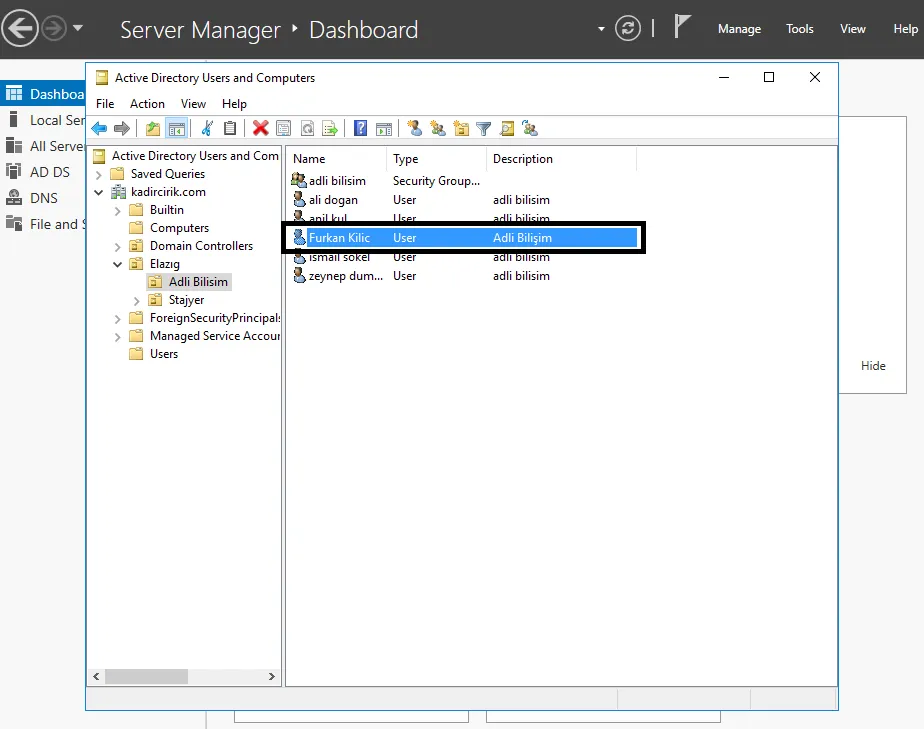
- I want to restrict the user Furkan Kilic, who is under the Adli Bilisim folder. I go to the user and select “right click>properties”.
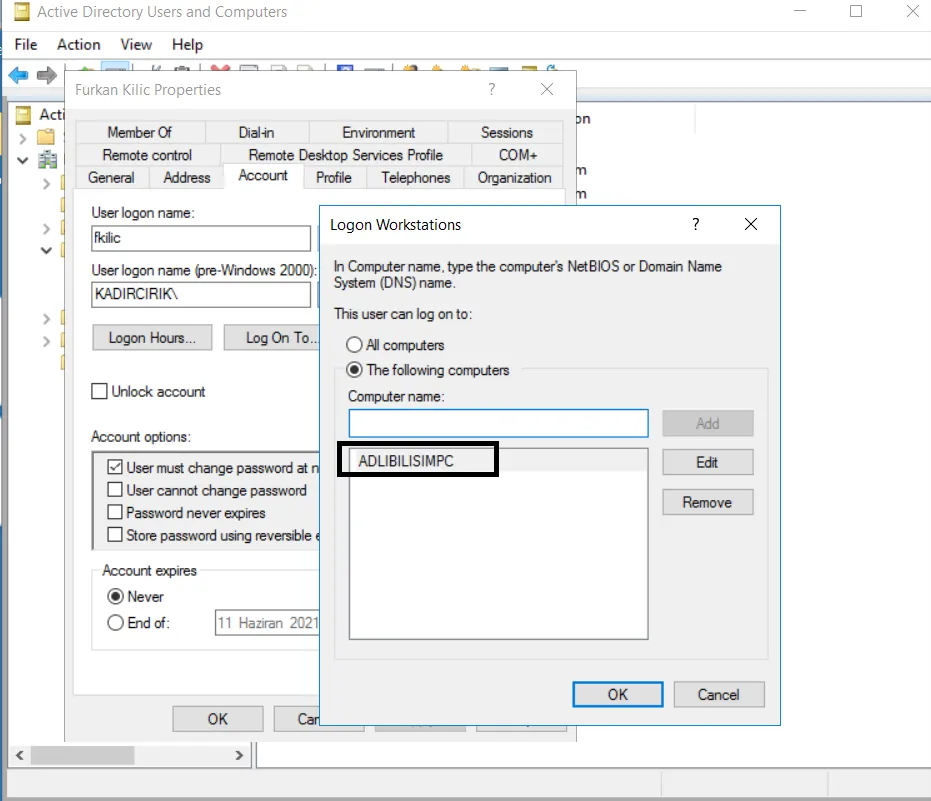
- On the screen that appears, I double-click the “Log On To” button. This brings us to the screen where we’ll define the restriction for our user.
- The “Logon Hours” option here is used when you want to restrict the hours during which a user can log on. I’ll cover how to configure that restriction in more detail in another article.
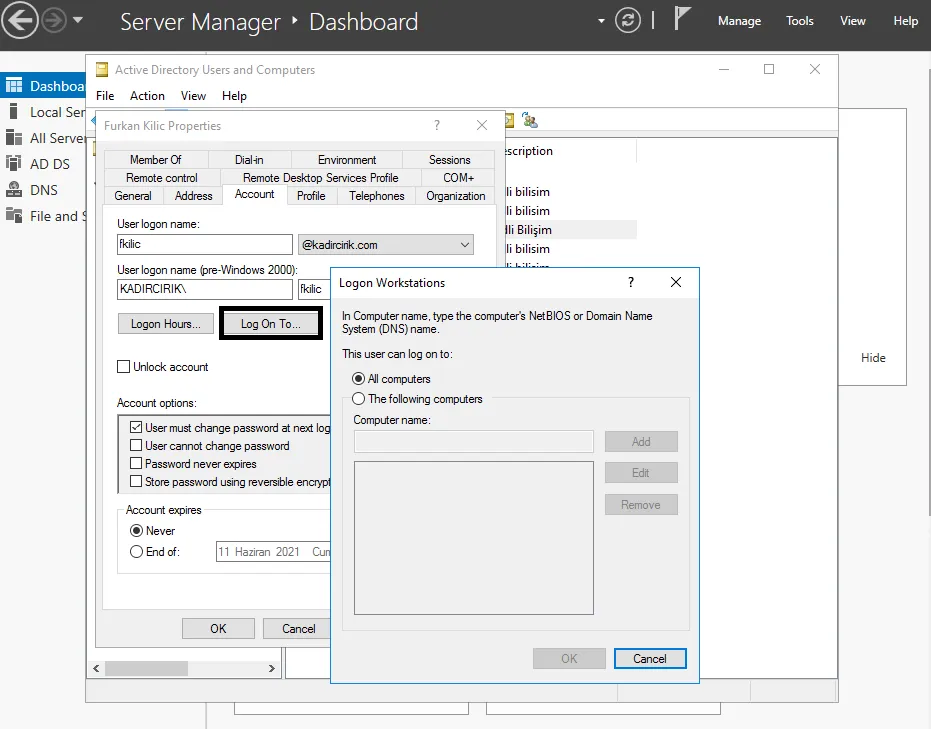
- As I mentioned, the screen above is where we’ll configure the restriction for our user. So we’ll select one of the computers under our “Computers” folder, and make sure our user can only access that selected computer.
- I have one computer here, and I’m going to make sure the user can only access this computer. If we had more than one computer, we’d be able to choose which computer or computers among them the user should be allowed to access.
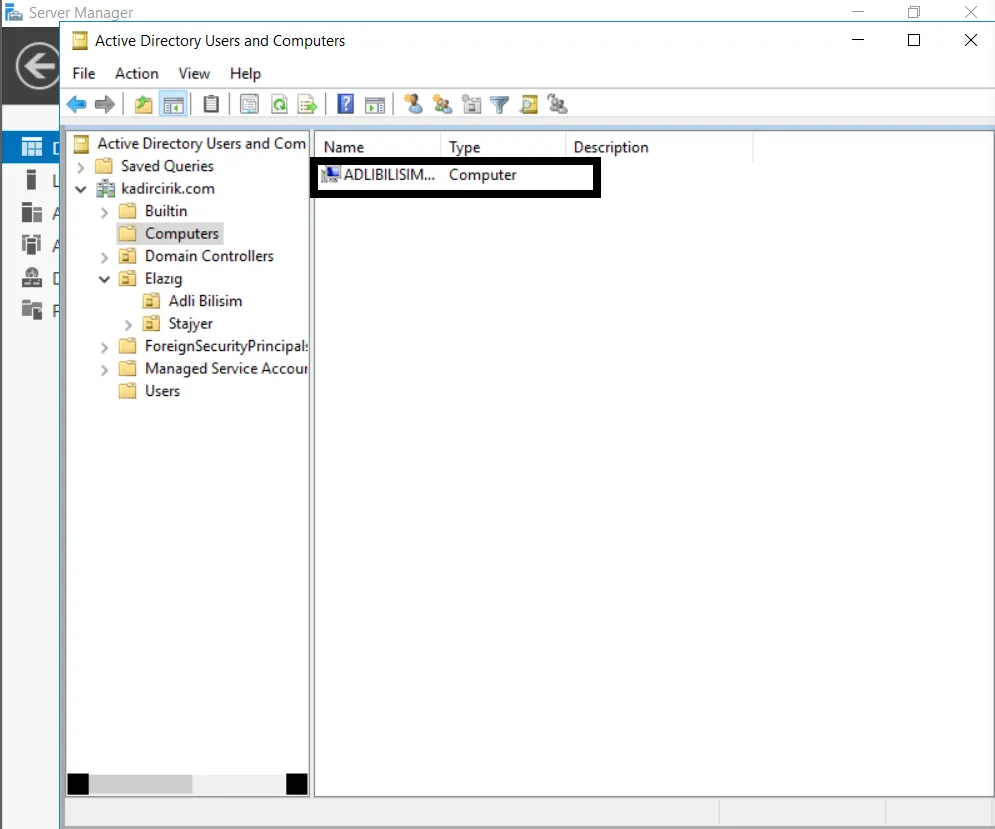
- I copy the computer name and go back to the first screen. This screen currently shows that this user can log on to all computers. We check the option to allow logon only to the computers we want.
- Then I type in the name of the computer to be logged on to and add it.
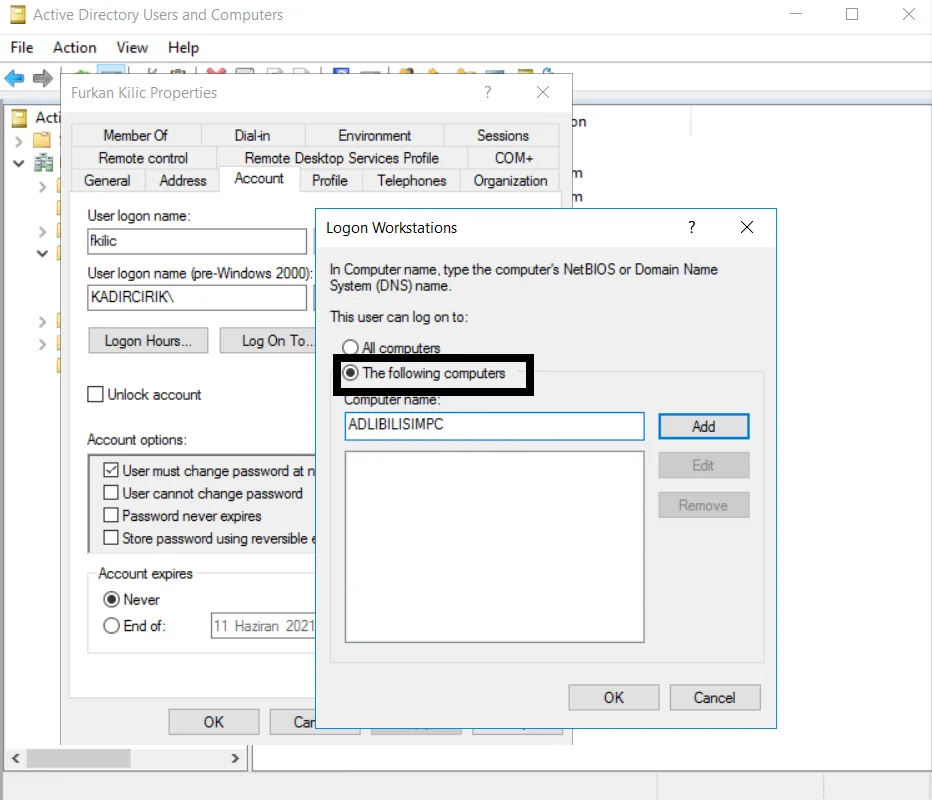
- As you can see, our user Furkan Kilic can now only log on to the computers we specified.
If you want to add more than one computer, you can follow the same steps and add as many computers as you like.
Thanks for reading this far. :)