How to Compile and Install Linux Kernel 5.12.12 from Source Code?
In this article, I'll walk you through how to compile the latest version of the Linux kernel, for anyone having trouble compiling it themselves. I'll…

Hello everyone. :)
In this article, I’ll walk you through how to compile the latest version of the Linux kernel, for anyone having trouble compiling it themselves. I’ll cover the information and commands you’ll need for this.
Compiling a custom kernel has its own advantages and disadvantages. In the rest of this article, I’ll go step by step through compiling version 5.12.12 of the Linux kernel on Ubuntu.
For this, our steps are as follows, in order:
- Fetching the latest kernel from kernel.org,
- Verifying the kernel,
- Extracting the tar.xz file,
- Copying the existing Linux kernel configuration file,
- Compiling and building version 5.12.12 of the Linux kernel,
- Installing the Linux kernel and its modules (drivers),
- Updating the Grub configuration,
- Rebooting the system.
1) Getting the source code of the latest Linux kernel
In the first part, we visit the official project site and download the latest source code. You can download it from the yellow section labeled “Latest Release.”
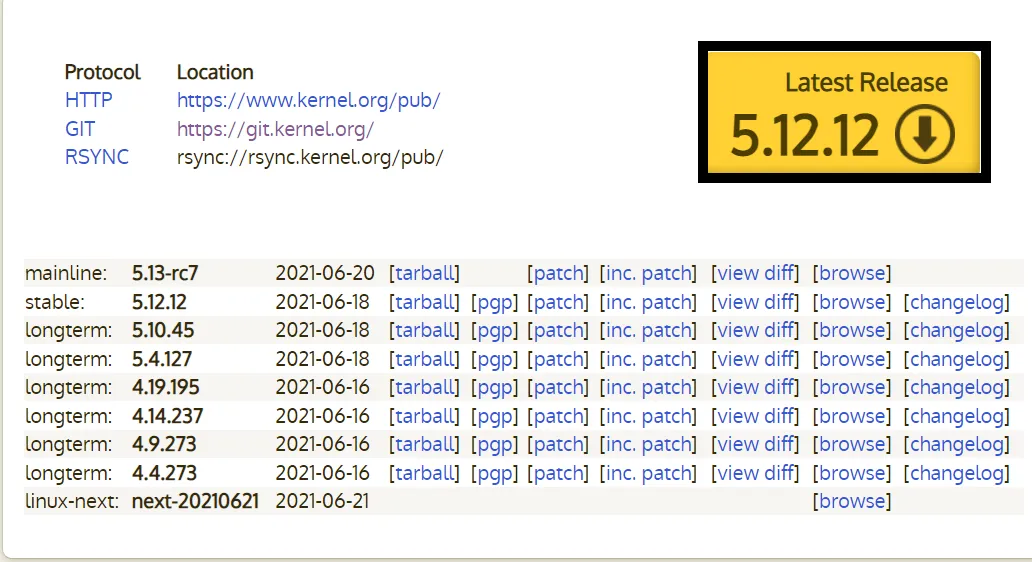
You can also download the linux-5.12.12.tar.xz file using the wget command. You can use this command as shown in the image.

2) Extracting the tar.xz file
You don’t actually need to extract the source code into /usr/src. You can extract the source code into your $HOME directory or any other directory using the unxz command or the xz command below. You can use either of these two commands for this.
- xz -d -v linux-5.12.12.tar.xz
or
- unxz -v linux-5.12.12.tar.xz

3) Verifying the Linux kernel tarball with pgp
For this, we first need to obtain a PGP signature for linux-5.12.12.tar. The command we’ll use:

To attempt verification:
- gpg –verify linux-5.12.12.tar.sign

Sample output for this looks like this:
- gpg: assuming signed data in ‘linux-5.12.12.tar’
- gpg: Signature made Wed 05 Jun 2021 12:52:35 PM CDT
- gpg: using RSA key 81KA5E1408457974
- gpg: Can’t check signature: No public key
From the output above, you need to fetch the key from the PGP key server. That is, the RSA key ID 81KA5E1408457974. The command we’ll use for this:
- gpg –recv-keys 81KA5E1408457974

Sample output looks like this.
- gpg: key 81KA5E1408457974: 7 duplicate signatures removed
- gpg: key 81KA5E1408457974: 172 signatures not checked due to missing keys
- gpg: /home/vivek/.gnupg/trustdb. gpg: trustdb created
- gpg: key 81KA5E1408457974: public key “Linus Torvalds <torvalds@kernel.org>” imported
- gpg: no ultimately trusted keys found
- gpg: Total number processed: 1
- gpg: imported: 1
Now let’s verify the gpg key again with the gpg command:
- gpg –verify linux-5.12.12.tar.sign

Sample output for this will look like this:
- gpg: assuming signed data in ‘linux-5.12.12.tar’
- gpg: Signature made Wed 05 Jun 2021 12:52:35 PM CDT
- gpg: using RSA key 79BE3E4300411886
- gpg: Good signature from “Linus Torvalds <torvalds@kernel.org>” [unknown]
- gpg: aka “Linus Torvalds <torvalds@linux-foundation.org>” [unknown]
- gpg: WARNING: This key is not certified with a trusted signature!
- gpg: There is no indication that the signature belongs to the owner. Primary key fingerprint: ABAF 12H5 4K26 86B9 90DF U5Y7 89KJ 7D965264 8974

4) Configuring the Linux kernel features and modules
Before you start building the kernel, you need to configure the Linux kernel features. You also need to specify which kernel modules (drivers) are needed for your system. This process can be quite difficult for a new user. It’s recommended that you copy the existing configuration file using the cp command.
- cp -v /boot/config-$(uname -r) .config

5) Installing the required compilers and other tools
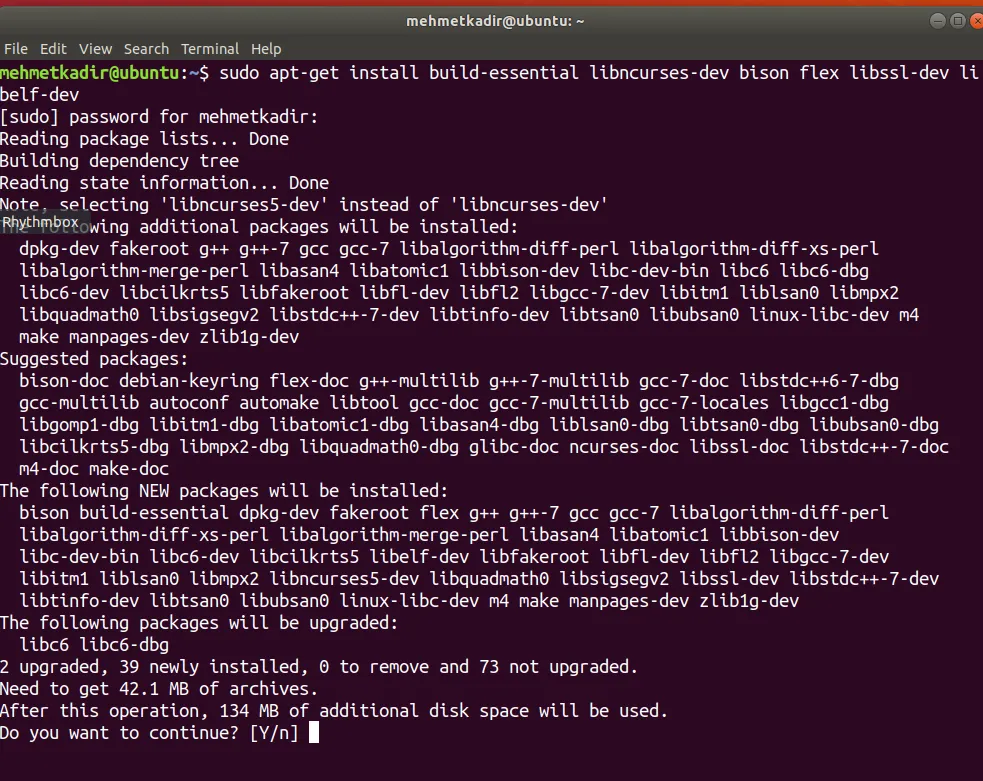
To compile the Linux kernel, you need development tools such as the GCC compilers and related tools. To install them, you should use the following command:
- sudo apt-get install build-essential libncurses-dev bison flex libssl-dev libelf-dev
6) Configuring the kernel
Now, inside the source code directory, you can start the kernel configuration by typing the following command.

7) Updating the Grub configuration
You need to modify the Grub 2 bootloader configuration. Depending on your Linux distribution, type the following command at a shell prompt:
- sudo update-initramfs -c -k 5.12.12

- sudo update-grub

We’ve now compiled a Linux kernel. The process takes a bit of time, but now you have a custom Linux kernel for your system. Let’s restart the system.
- reboot: Simply a command to restart or shut down.
In this article, I’ve covered how to compile and install the Linux kernel from source code. I hope you found it useful. Thanks for reading this far. :)