Viewing Active Directory Logs in Event Viewer
Active Directory(AD) plays a critical role in account management, covering both computer and user accounts. In particular, Active Directory…

Hello everyone :)
Active Directory (AD) plays a critical role in account management, covering both computer and user accounts. In particular, the Active Directory service lets you control access to file servers and to the components, applications, and data on the network. One of the most important parts for us here is checking and detecting changes made to Active Directory in order to secure the infrastructure and the data, so that we can prevent any malware or abnormal activity.
Event Viewer is the most important solution for tracking security logs. It’s free and comes by default in every Microsoft Windows system’s administrative tools package. Once we enable auditing on Active Directory, Windows Server writes events to the “Security” log on the domain controller. The security event log records the following information:
- The action that was performed
- The user who performed the action
- Whether the activity succeeded and any errors that occurred, etc.
- The time the event took place
If you’d like to learn more about the Active Directory concept in detail, you can check out my earlier article at this link.
1) Group Policy Management
Active Directory event logs can be viewed using Event Viewer. However, we first need to enable our domain’s audit policy.
To do this, we follow these steps in order.
First, we open the Group Policy Management console on any domain controller in our target domain. We can also do this by typing the “gpmc.msc” shortcut command in the Start menu. Then we click Start and go to Windows Administrative Tools (Windows Server 2016) or Administrative Tools → Group Policy Management. Then we right-click on the domain controller.
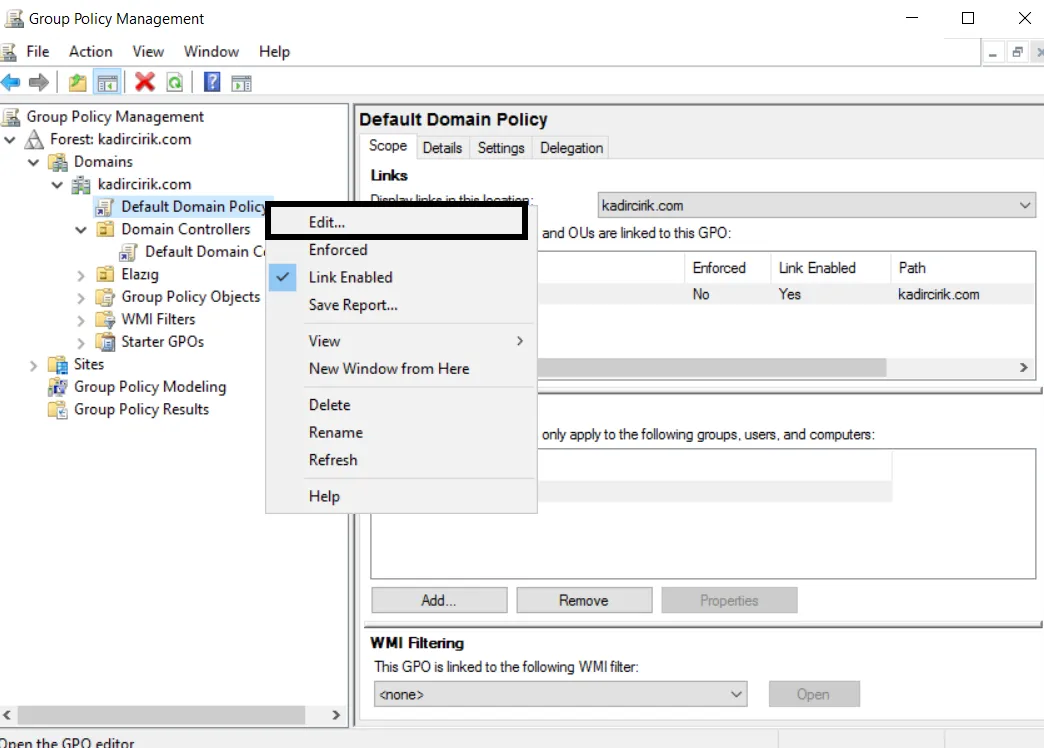
2) Audit Policy Settings
In this part, we follow the path Group Policy Management Editor → Computer Configuration → Policies → Windows Settings → Security Settings → Local Policies → Audit Policy.
Here we configure the following audit policies:
- Audit account management: Success
- Audit logon events: Success and Failure
- Audit directory service access: Success
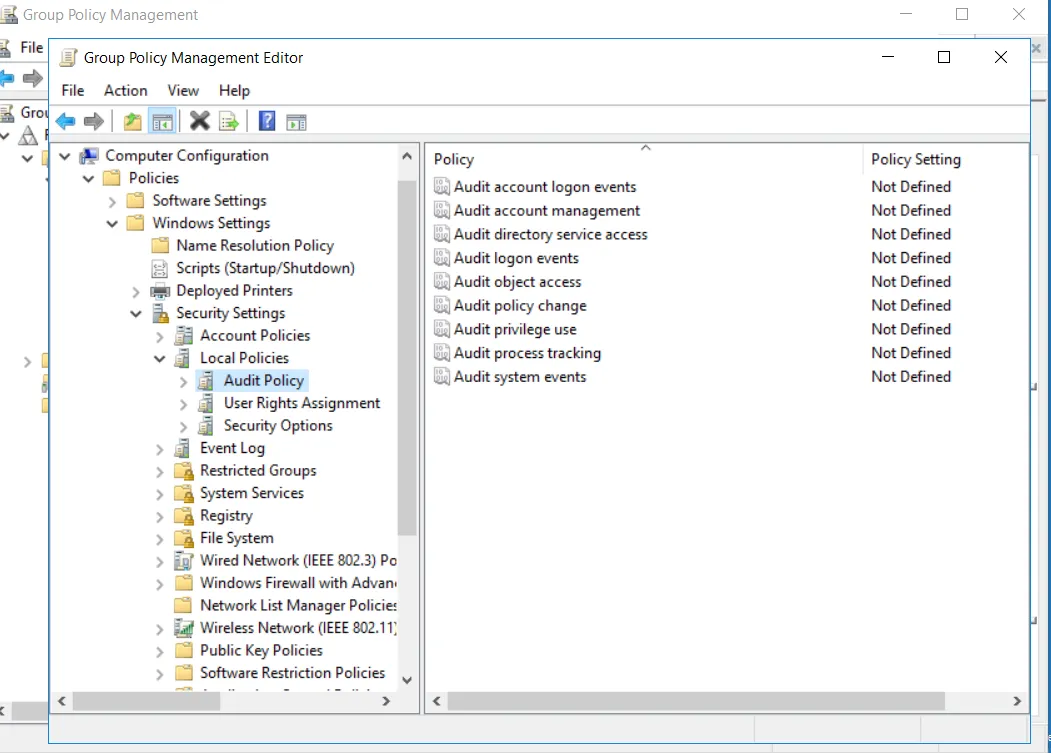
3) Configure Advanced Audit Policies
Alternatively, you can set Advanced Audit Policies: in Group Policy Management Editor, we follow the path Computer Configuration → Policies → Windows Settings → Security Settings → Advanced Audit Policy Configuration → Audit Policies.
Then we configure the following audit policies:
Account Management
- Computer Account Management: Success
- Distribution Group Management: Success
- Security Group Management: Success
- User Account Management: Success
DS Access
- Audit Directory Service Access: Success
Logon / Logoff
- Audit Logoff: Success
- Audit Logon: Success
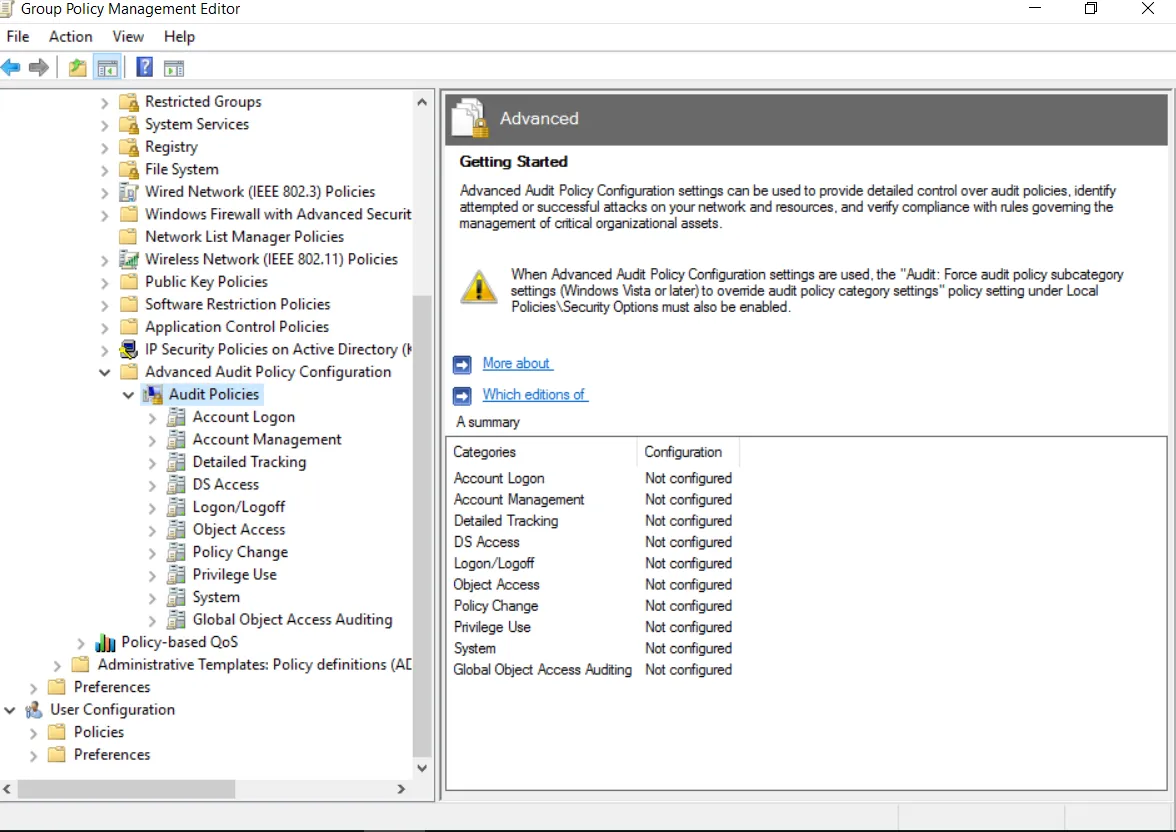
4) Checking Event Viewer
- We select Start → Event Viewer.
- We continue with Windows logs → Security Log.
- We click Filter Current Log.
- Here we specify the event ID and can filter as shown in image 2.
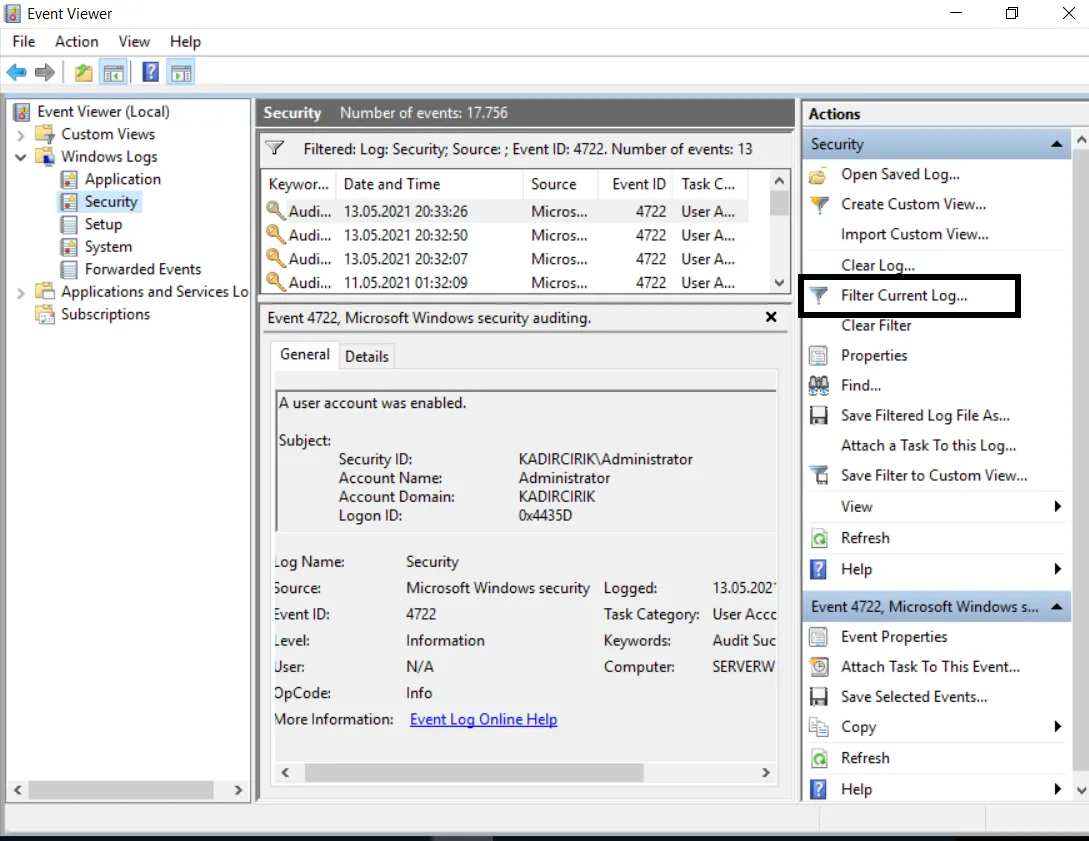
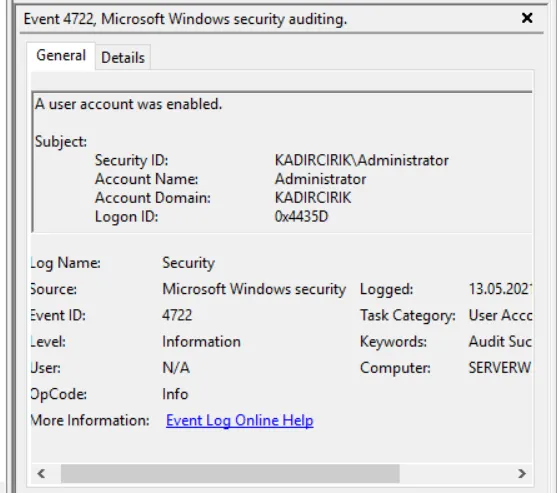
- As a result of the filtering steps described above, you can get a result like this.
5) User Account Management Event IDs
- 4720 - A user account was created.
- 4722 - A user account was enabled.
- 4723 - An attempt was made to change an account’s password.
- 4724 - An attempt was made to reset an account’s password.
- 4725 - A user account was disabled.
- 4726 - A user account was deleted.
- 4738 - A user account was changed.
- 4740 - A user account was locked out.
- 4767 - A user account was unlocked.
- 4780 - The ACL was set on accounts which are members of administrators groups.
- 4781 - The name of an account was changed:
- 4794 - An attempt was made to set the Directory Services Restore Mode administrator password.
- 5376 - Credential Manager credentials were backed up.
- 5377 - Credential Manager credentials were restored from a backup.
6) Security Group Management Event IDs and Meanings
- 4727 - A security-enabled global group was created.
- 4728 - A member was added to a security-enabled global group.
- 4729 - A member was removed from a security-enabled global group.
- 4730 - A security-enabled global group was deleted.
- 4731 - A security-enabled local group was created.
- 4732 - A member was added to a security-enabled local group.
- 4733 - A member was removed from a security-enabled local group.
- 4734 - A security-enabled local group was deleted.
- 4735 - A security-enabled local group was changed.
- 4737 - A security-enabled global group was changed.
- 4754 - A security-enabled universal group was created.
- 4755 - A security-enabled universal group was changed.
- 4756 - A member was added to a security-enabled universal group.
- 4757 - A member was removed from a security-enabled universal group.
- 4758 - A security-enabled universal group was deleted.
- 4764 - A group’s type was changed.
7) Computer Account Management Event IDs
- 4741 - A computer account was created.
- 4742 - A computer account was changed.
- 4743 - A computer account was deleted.
8) Distribution Group Management Event IDs
- 4744 - A security-disabled local group was created.
- 4745 - A security-disabled local group was changed.
- 4746 - A member was added to a security-disabled local group.
- 4747 - A member was removed from a security-disabled local group.
- 4748 - A security-disabled local group was deleted.
- 4749 - A security-disabled global group was created.
- 4750 - A security-disabled global group was changed.
- 4751 - A member was added to a security-disabled global group.
- 4752 - A member was removed from a security-disabled global group.
- 4753 - A security-disabled global group was deleted.
- 4759 - A security-disabled universal group was created.
- 4760 - A security-disabled universal group was changed.
- 4761 - A member was added to a security-disabled universal group.
- 4762 - A member was removed from a security-disabled universal group.
- 4763 - A security-disabled universal group was deleted.
9) Application Group Management Event IDs
- 4783 - A basic application group was created.
- 4784 - A basic application group was changed.
- 4785 - A member was added to a basic application group.
- 4786 - A member was removed from a basic application group.
- 4787 - A non-member was added to a basic application group.
- 4788 - A non-member was removed from a basic application group.
- 4789 - A basic application group was deleted.
- 4790 - An LDAP query group was created.
- 4791 - A basic application group was changed.
- 4792 - An LDAP query group was deleted.
Event Viewer’s log storage capacity is 4 GB, and logs get overwritten when necessary. As a result, the clutter in the logs makes it harder for us to get a clear picture of the events occurring in the domain. These limitations make Event Viewer a fairly basic auditing tool for Active Directory.
Thanks for reading this far :)