What Is the Master File Table? Understanding the MFT
In digital forensics, disk analysis is performed to detect a crime or an incident. In the file systems section I covered in my earlier articles, we learned…

In digital forensics, disk analysis is performed to detect a crime or an incident. In the file systems section I covered in my earlier articles, we learned that there are many different file systems. Besides having different file systems, the analysis methods for these different file systems also differ.
In this article I’ll cover the MFT (Master File Table) found inside the NTFS file system, its importance for digital forensics, and how it’s analyzed.
MFT (Master File Table)
The MFT holds a record for every file created on the operating system.
The MFT forms the foundation of the NTFS file system and is known as the heart of NTFS.
To make this clearer, let me explain it this way:
- For example, when any new file (kadir.txt, rapor.docx, foto.jpeg…) is created on the operating system, a record is opened for it in the MFT. And these created files are recorded here.
For requested files to be made available to users, their locations need to be known. The MFT records these files internally and returns the requested response to us.
What properties does a file entry in the MFT table hold?
Every file tracked in the MFT table has the following data;
- where the file is located,
- the data it contains,
- metadata information (Metadata holds detailed information about files. The MFT table contains a lot of information here, such as the file’s creation date, access date, modification dates, and whether it has been tampered with.)
How many records can be held in the MFT table?
You can think of the MFT table as effectively an infinite table that grows as needed. No matter how many files we create, new entries can keep being appended below indefinitely.
What’s important to know here, and what matters for us, is this: the first 16 entries in the $MFT file are reserved in advance for the system to function. Because of this, we can’t write data to them or change their contents.
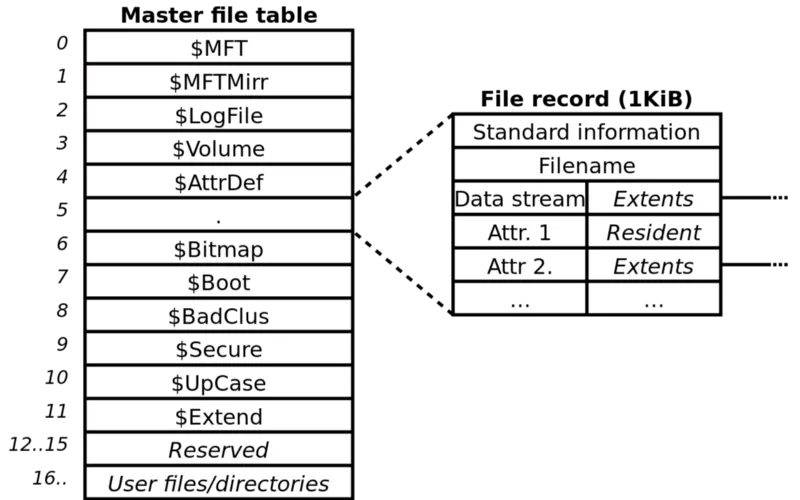
In the image above, you can see the first 16 reserved records in the MFT and their names.
Among these first 16 records, there are 3 files I want to highlight because they matter to us. These are the $MFT, $LogFile, and $USNjrnl files.
- $MFT: This is the file we use when we want to parse the MFT. This file also contains all the information in the same way. All MFT records are found here. If we want to pull filtered information instead, we can parse the files found within the other 15 records.
- $LogFile: This is used to prevent the file system from becoming corrupted in the event of a system crash or power outage. We can also obtain file-related data from this file.
- $USNjrnl: For the sake of file reliability, Microsoft added a journal (log) record file into NTFS. This is a special file that keeps log records of all operations performed. In the event of a system crash, the records held here make it possible to recover information.
Structure of the MFT
We mentioned earlier that a new record is created in this table every time a new file is created.
What I mean by “the record that’s created” here is this;
- Say we created a new file on the desktop, and this file got recorded into the $MFT table. This record is stored in the MFT under the following headers.
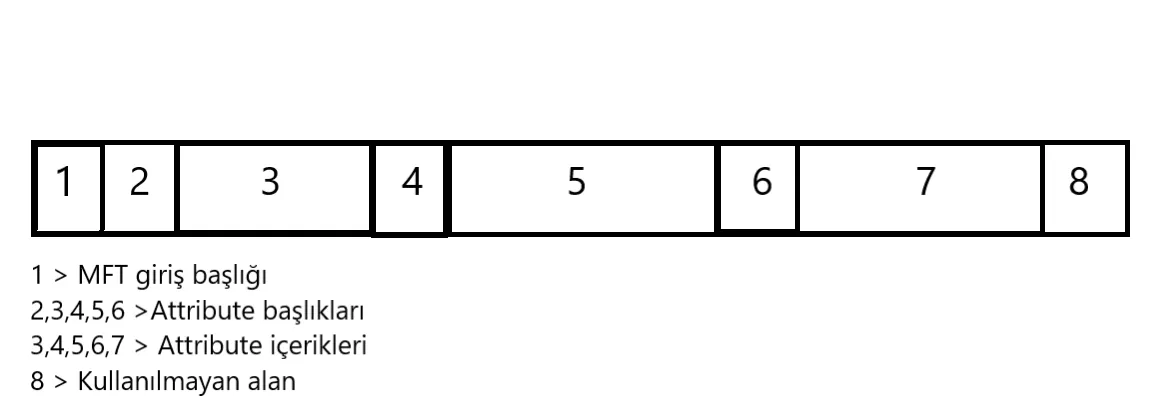
- MFT Header,
- Standard Info Attribute,
- FileName attribute,
- Volume Attribute,
- Data Attribute,
-
Other attribute
-
Other attribute
-
Other attribute
Of these, the most important pieces of information are sections 2, 3, and 5.
2) Standard Info Attribute: This holds the following information;
- The file’s last access date,
- The file’s last modified date,
- The file’s creation date, and similar information.
3) FileName Attribute: This section holds the same information as the “Standard Info Attribute”.
- File name,
- The file’s last access date,
- The file’s last modified date,
- The file’s creation date, and similar information.
5) Data Attribute:
This is where the data contained in the data we created is held.
What matters here is that if the size of the created file is smaller than roughly 700–800 bytes, it’s kept inside the MFT table itself.
By default, a data entry created in the MFT is allocated 1024 bytes. Even if we don’t put anything into that data at all, it will still take up 1024 bytes. This is why, for data in the 700–800 byte range, instead of creating a new table, it can be fit into this existing entry.
- To give an example: say we created a new file called “dersadi.txt”. This file was added to the MFT table. If we open this file and put in data smaller than 700–800 bytes — let’s say we write “Matematik” into it — that Matematik data we wrote into the file is displayed in the “Data Attribute” section of the MFT table.
- This way, we also avoid recording the file we wrote into as a separate new MFT table entry.
Why is the data in the Standard Info Attribute and the FileName Attribute the same?
The reason the same information exists in both places, across these two attributes, is this:
Attackers can apply anti-forensic techniques to files. In other words, by altering file information, they can both hide themselves and make the analyst’s job harder.
- Attackers can freely alter the data in the Standard Info Attribute section without needing special privileges. This lets them both complicate the analysis and hide themselves. However, altering the data in the FileName Attribute section requires elevated privileges on the system. This makes the file data found there difficult to change.
- During any analysis, it’s necessary to cross-check the file data found in the Standard Info Attribute and FileName Attribute against each other. If this information doesn’t match, we can say that the file information in the Standard Info Attribute has been altered.
$MFT Windows 10 Timeline
Also known as MAC(b) times, this name comes from the initials of Modified, Accessed, Changed, and Birth times. MAC(b) times hold information about a file’s last modification time, creation time, access time, and $MFT change time.
Not every file system tracks birth time, i.e. the original creation time.
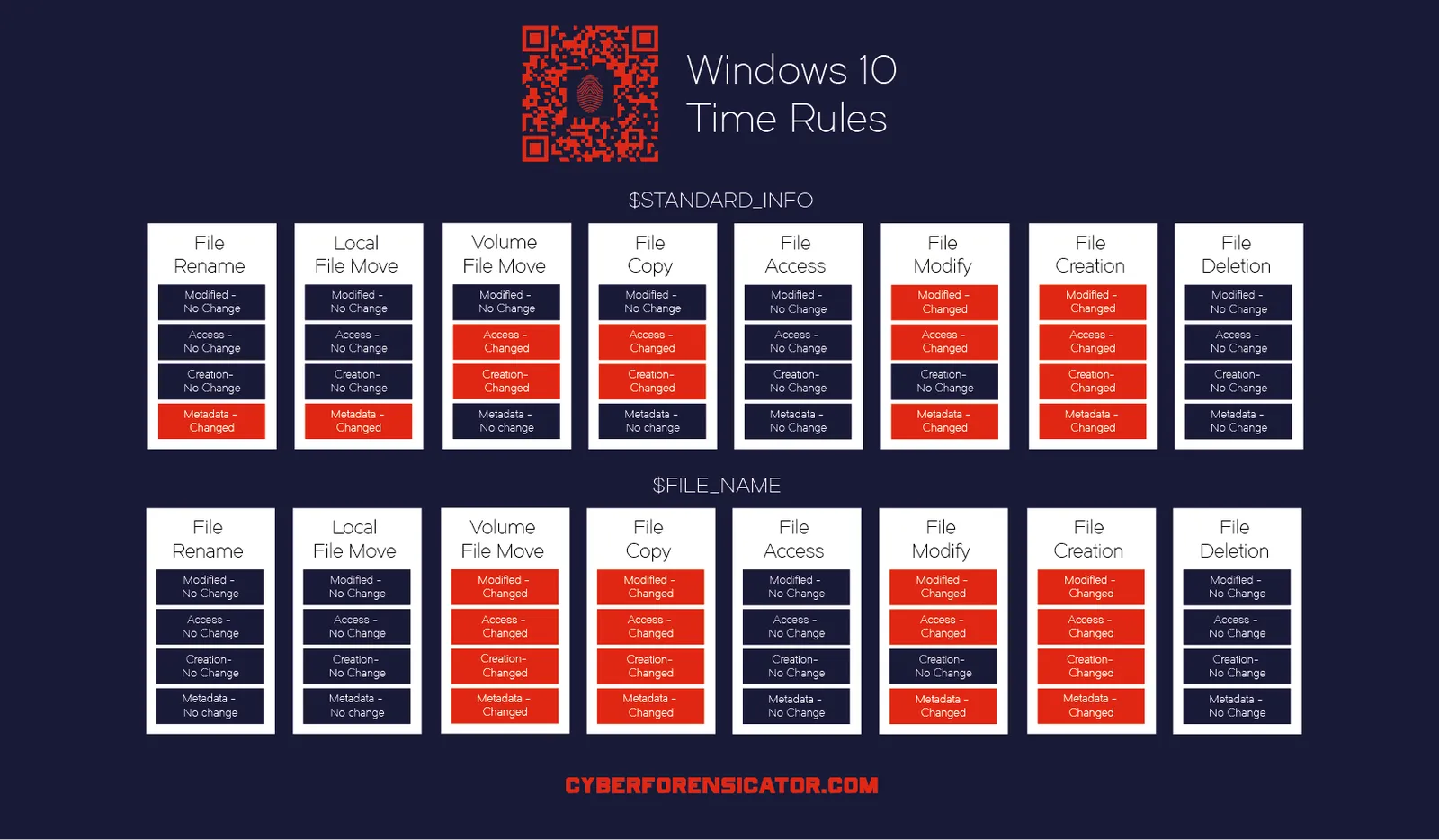
This information is found in the Standard Info Attribute and File Name Attribute. Each file in the MFT holds four timestamps for Standard Info and four for File Name, for a total of eight timestamps.
The MFT timeline shown in the image below was prepared and tested for Windows 10 systems.
- According to this table, for example, we can see that when a file’s name is changed (File rename) in the “Standard Info” attribute, the modified, access, and creation dates don’t change, but the metadata information does change.
- According to this table, for example, we can see that when a file’s name is changed (File rename) in the “File Name” attribute, the modified, access, creation dates, and metadata information don’t change.
- The MFT timeline shown in this image was prepared and tested for Windows 7-8 operating systems.
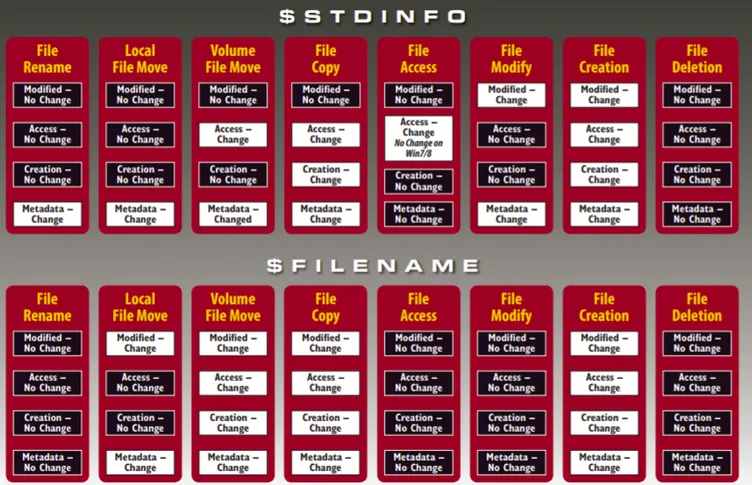
- You can compare the two images above to see and evaluate the differences between them.
Thanks for reading this far. :)