Exporting the Windows 10 Event Viewer
. In this article I'll try to give some information about a concept every Windows 10 user should know, the Event Viewer. And then I'll cover how we can…

Hello everyone :). In this article I’ll try to give some information about a concept every Windows 10 user should know, the Event Viewer. And then I’ll cover how we can export it for later review.
Windows has had the Event Viewer for roughly 10 years now. Event Viewer is a tool that lets us view detailed information about events on your computer. If I break down the events here: errors, information messages, warnings, unexpectedly launched programs, updates… Event Viewer also plays a very important role for us in identifying problems related to Windows and other programs. It logs abnormal activity on your system, obscure errors and their detailed information, and application activity and behavior in the background to the Event Log, and lets us access it whenever we want.
How Do We Access the Event Log?
In the rest of this article, I’ll cover how to export the Event Viewer log.
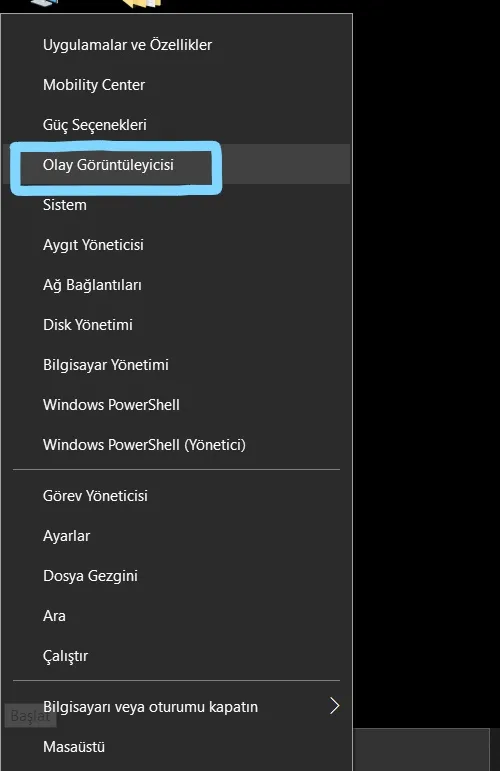
- We right-click the Start tab in the bottom-left corner of our computer. And from there we continue by clicking the Event Viewer tab.
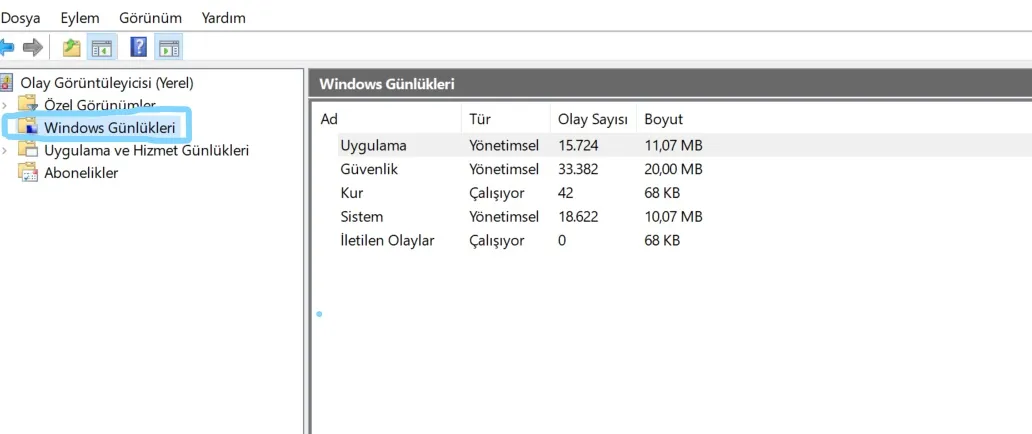
- From the screen that appears, we continue by clicking the Windows Log option.
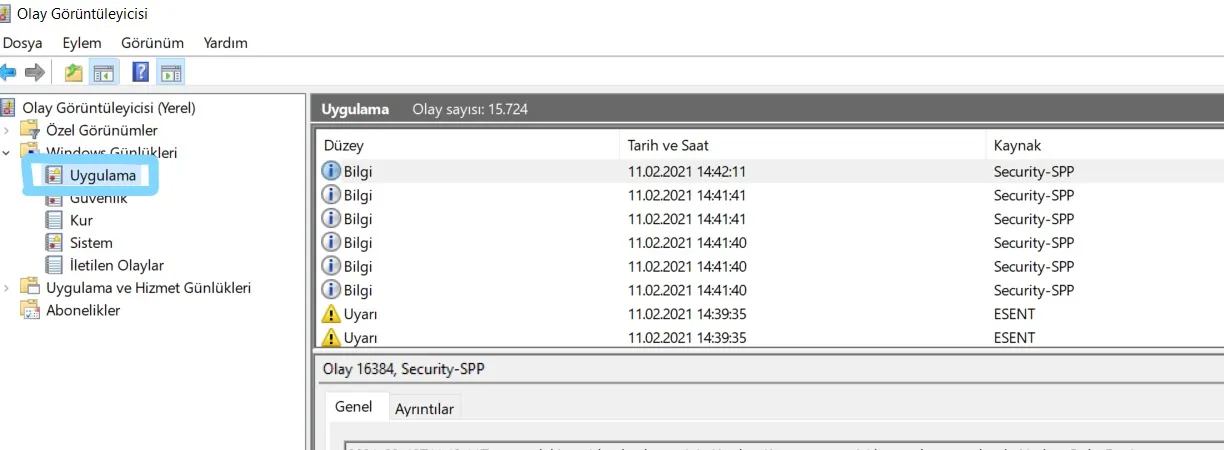
- Here we select the Application option. There will definitely be errors here, so don’t worry. Even the best-protected system has plenty of error messages. You can review the table a bit here. Some of the events here and their meanings are as follows.
-
Information Indicates that everything is fine and there’s no problem. -
Warning Indicates that there’s no major problem, but there could be minor issues. -
Error Indicates that there are problems such as data loss.
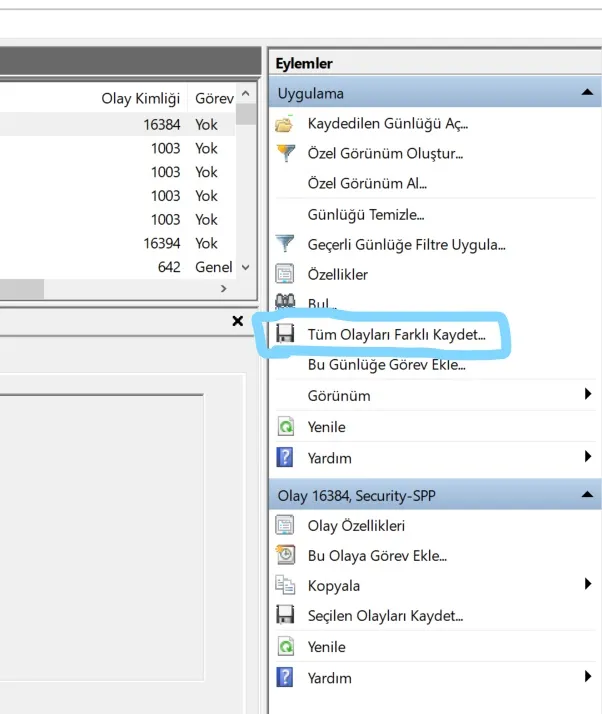
- From the section on the right side of the screen, we click the Save All Events As tab.
- In the new screen, we type the path and file name we want to save to. I saved mine to the desktop as Event Viewer.
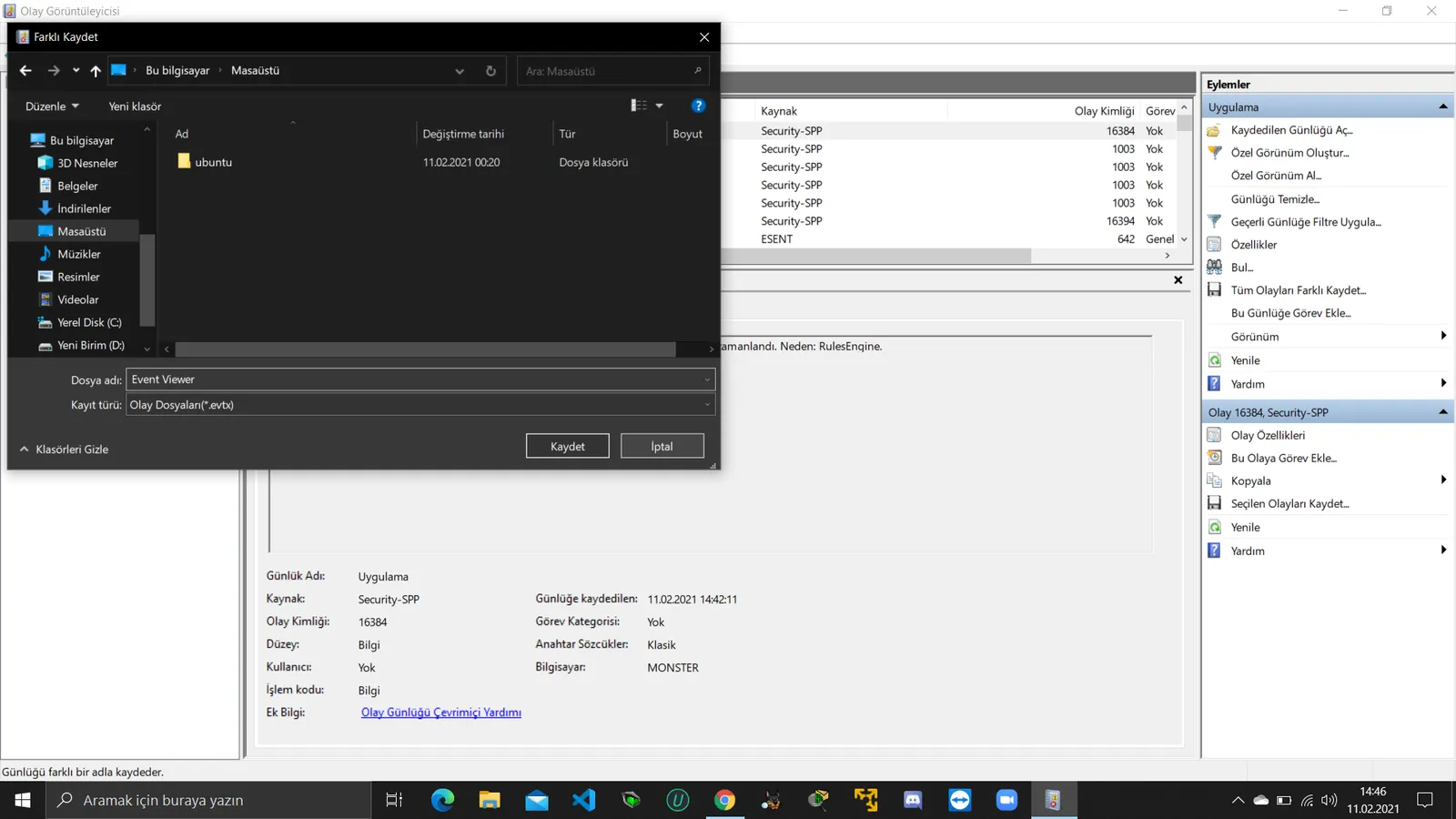
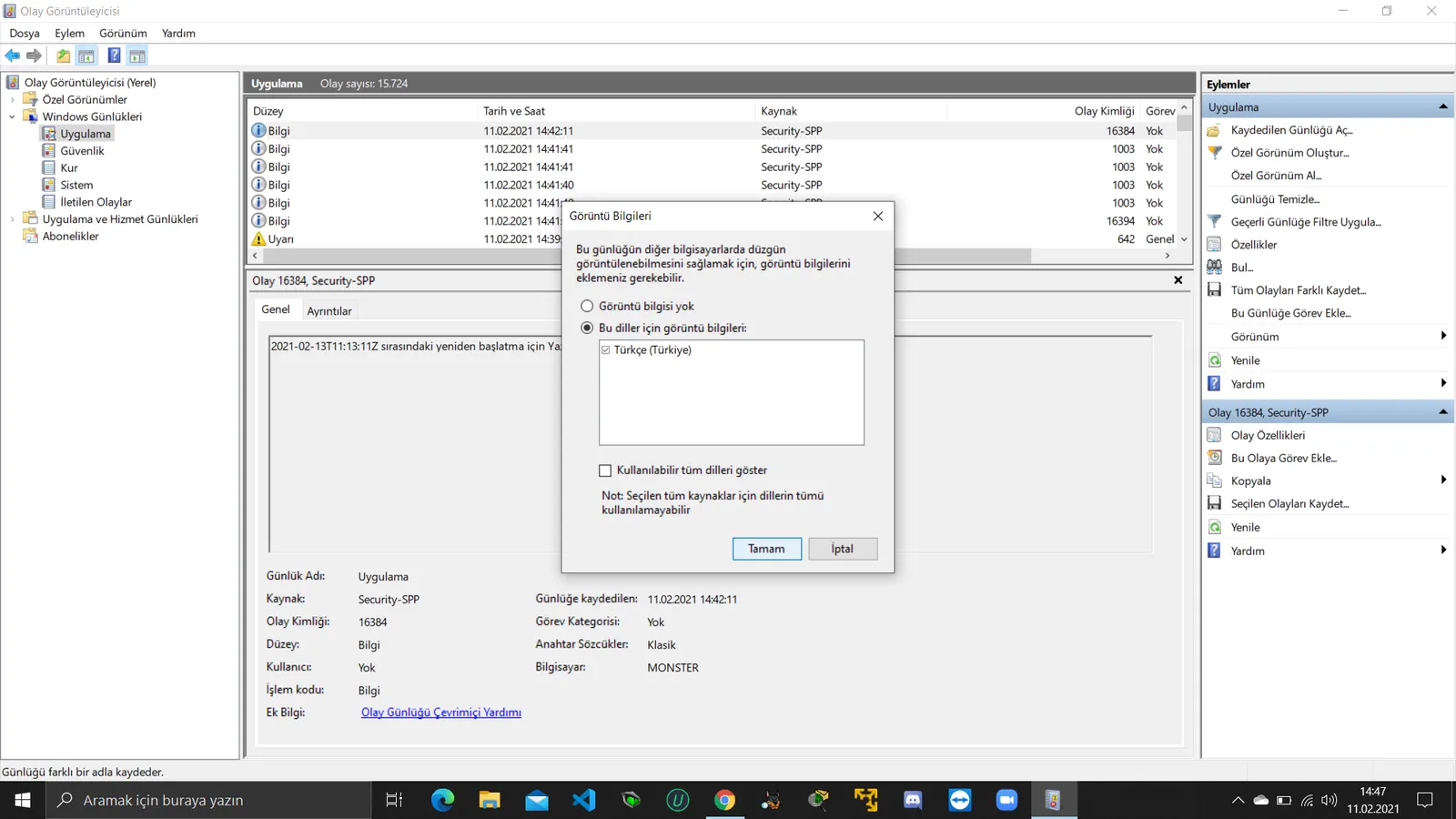
- Here it asks whether to display information for these languages. We select the one below and continue.
- The log exported from Event Viewer, which can help resolve application and system errors, is now on our desktop.
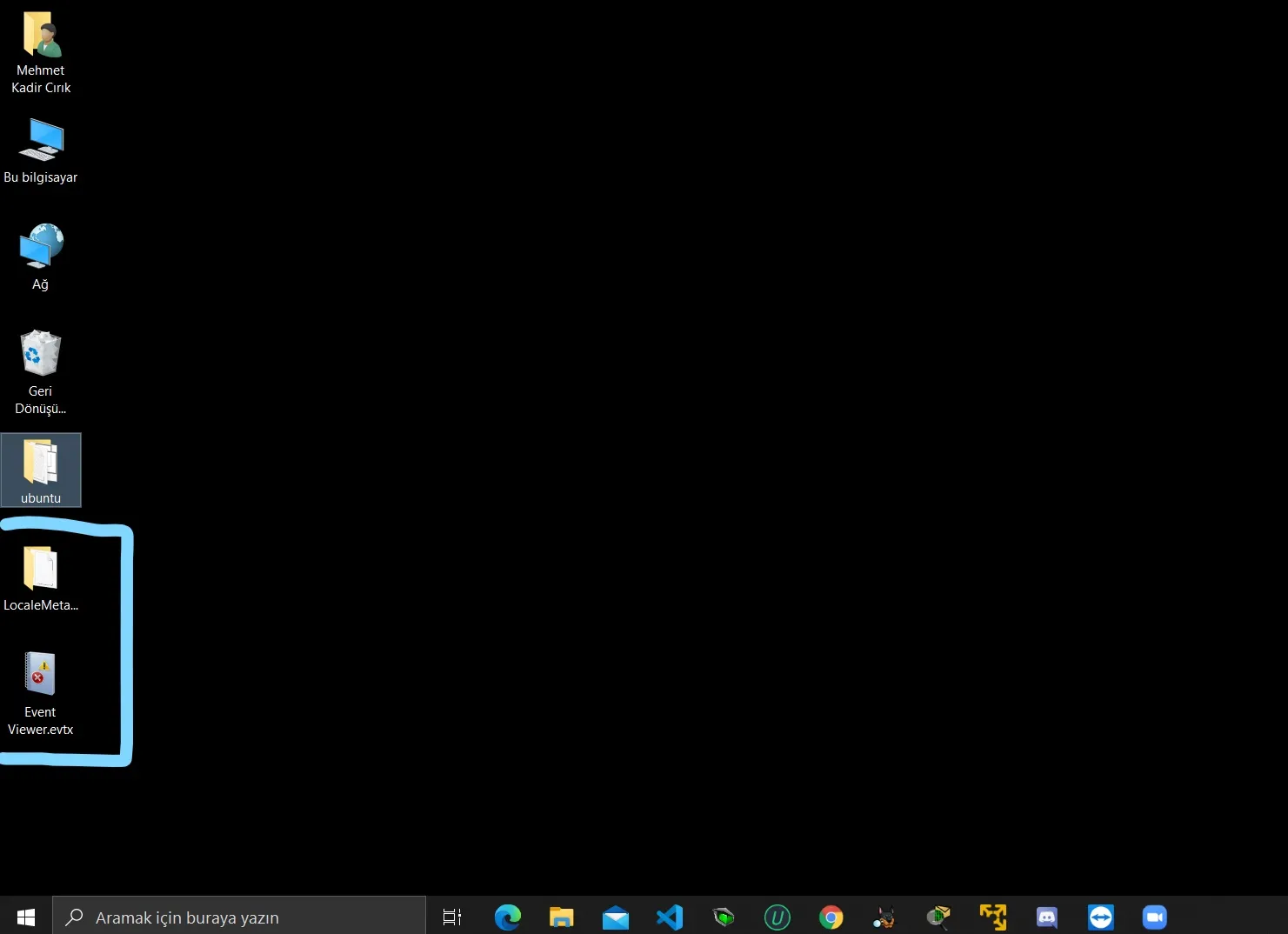
From here, you can make the necessary edits and review the log.
Accessing Event Viewer from the Command Prompt
If you want to open Event Viewer using your computer’s command prompt, all you need to do is type the following command.
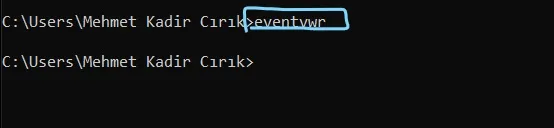
Thanks for reading this far. I hope it was useful. :)